Install True Value Wishlist Email
True Value Wishlist Email is also shown inside the app as TValue: Wishlist. Both names refer to the same Shopify wishlist app by TValueApps.
TValue: Wishlist is designed to work with minimal setup. After you install the app, the only required setup step is enabling the TValue: Wishlist Core app embed in your Shopify theme.
If your theme is fully supported, wishlist features can start working automatically after the core app embed is enabled and saved.
Install the app
- Open the True Value Wishlist Email app listing.
- Click Install.
- Approve the installation in Shopify.
Follow the onboarding
When you open the app for the first time, TValue: Wishlist shows a short onboarding flow.
- Choose your app language.
- Click Next step.
- Select the theme you want to set up.
- Click Enable to open the Shopify theme editor in a new tab.
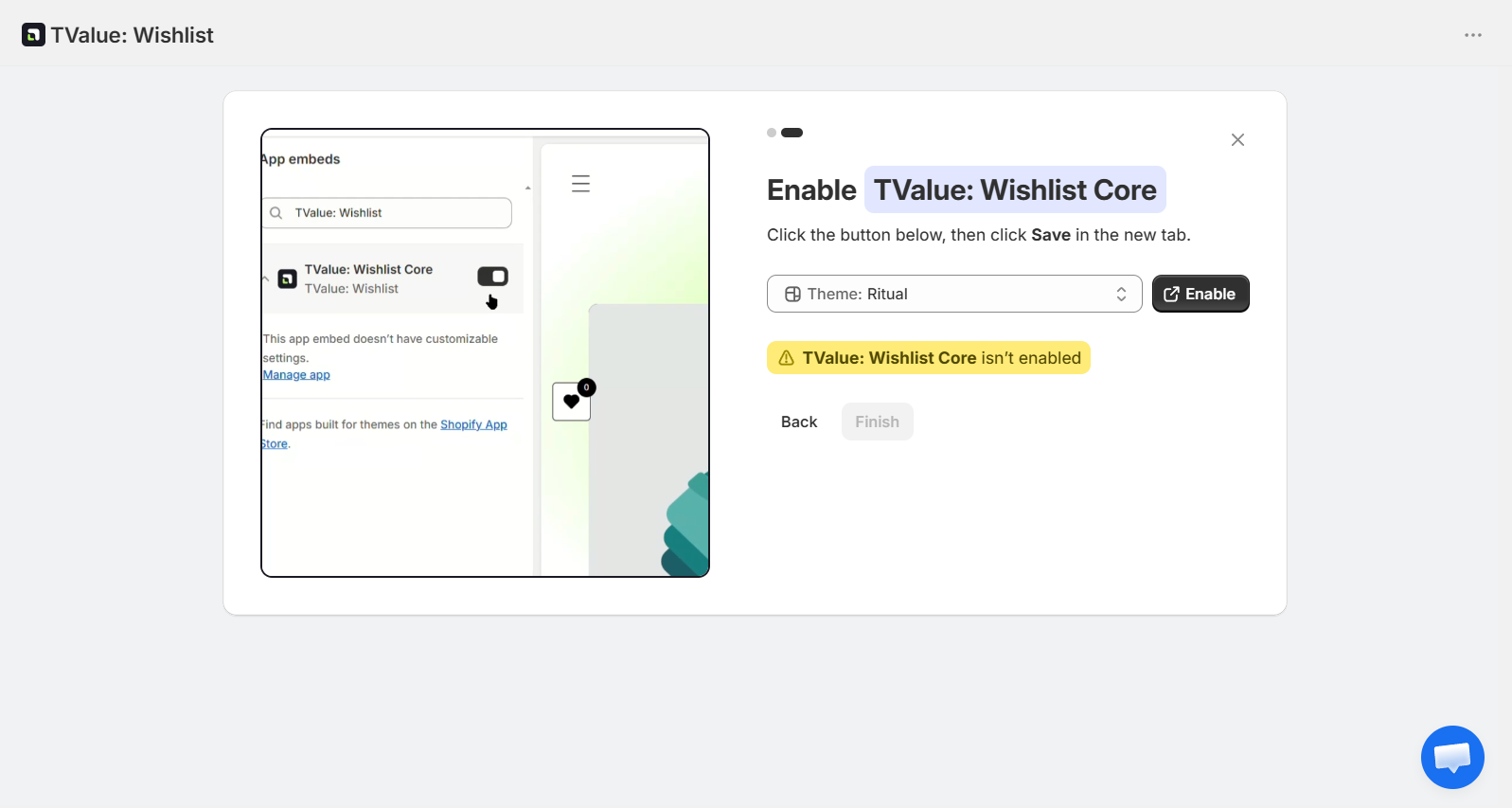
Click Enable to open the theme editor with TValue: Wishlist Core turned on for the selected theme.
- In the new tab, click Save in the theme editor.
- Return to TValue: Wishlist.
When the app detects that TValue: Wishlist Core is enabled, the status changes from TValue: Wishlist Core isn't enabled to TValue: Wishlist Core is ready.
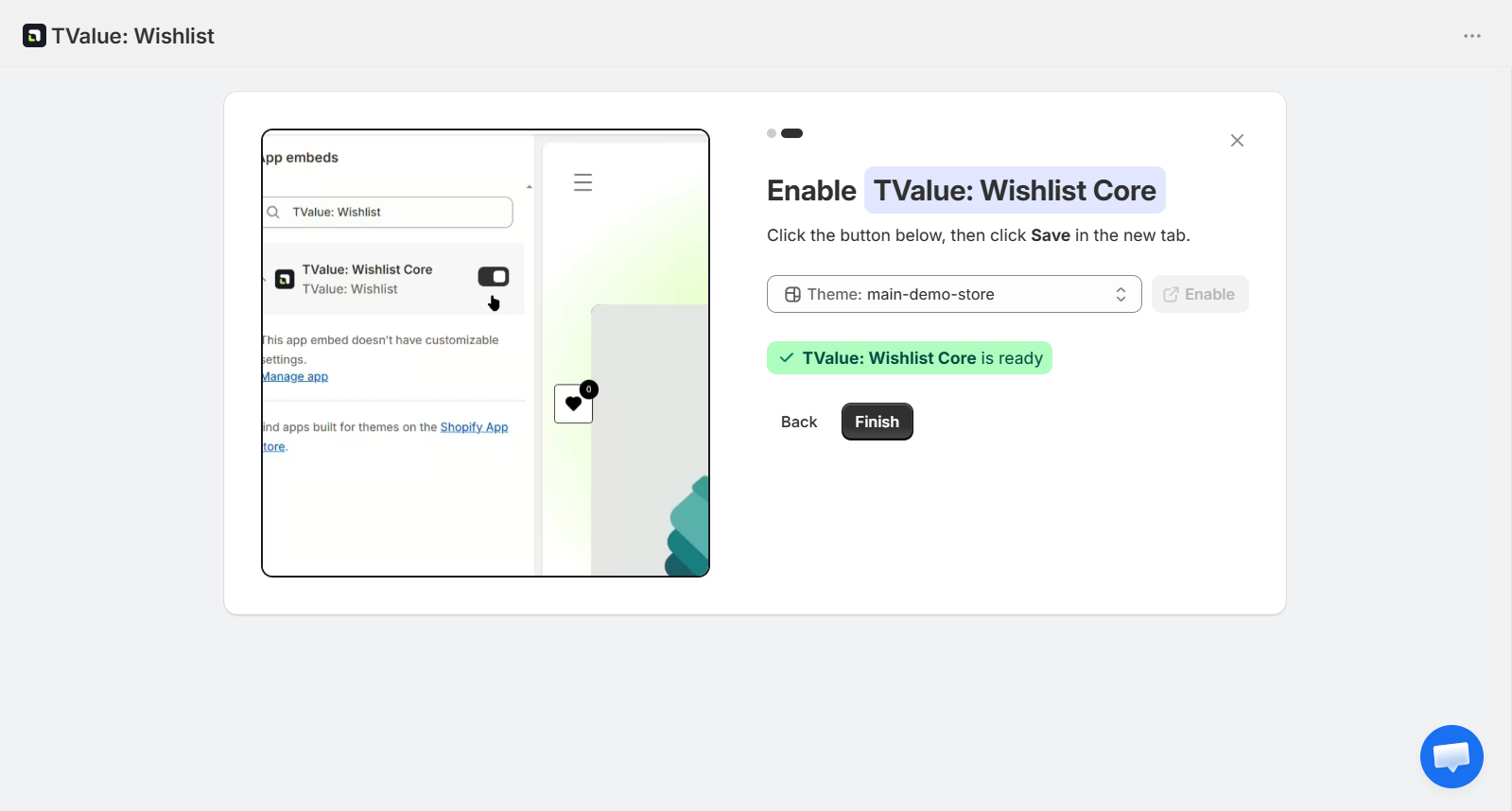
When TValue: Wishlist Core is ready, click Finish to complete onboarding.
Click Finish to complete onboarding.
If you prefer to open the theme editor yourself, go to Online Store, click Edit theme on the theme you want to set up, open App embeds, enable TValue: Wishlist Core, and click Save.
What happens next
TValue: Wishlist checks your theme after installation.
If your theme is fully supported, the app can automatically show wishlist features such as product page buttons, collection buttons, the wishlist popup or page, floating button, header button, toast, and contact capture popup.
If your theme needs additional support, the app can still provide core wishlist features while our team prepares theme support for your store.
Next step
After installing the app, continue with Check theme compatibility.