<?xml version="1.0" encoding="utf-8"?>
<feed xmlns="http://www.w3.org/2005/Atom">
    <id>https://tvaluewishlist.com/resources/guides/</id>
    <title>TValue: Wishlist Blog</title>
    <updated>2026-07-13T00:00:00.000Z</updated>
    <generator>https://github.com/jpmonette/feed</generator>
    <link rel="alternate" href="https://tvaluewishlist.com/resources/guides/"/>
    <subtitle>TValue: Wishlist Blog</subtitle>
    <icon>https://tvaluewishlist.com/img/logo-tvaw.png</icon>
    <entry>
        <title type="html"><![CDATA[How to Send Shopify Wishlist Events to Klaviyo]]></title>
        <id>https://tvaluewishlist.com/resources/guides/send-shopify-wishlist-events-to-klaviyo/</id>
        <link href="https://tvaluewishlist.com/resources/guides/send-shopify-wishlist-events-to-klaviyo/"/>
        <updated>2026-07-13T00:00:00.000Z</updated>
        <summary type="html"><![CDATA[Connect Shopify wishlist activity to Klaviyo, test six TValue wishlist events, build metric-triggered flows, and add saved products to emails.]]></summary>
        <content type="html"><![CDATA[<p>To send Shopify wishlist activity to Klaviyo, connect <strong>TValue: Wishlist</strong> with a Klaviyo Private API Key, enable the events you need, and send a test event. Each event appears in Klaviyo as a <code>TVAW:</code> metric that can trigger a flow and provide customer and saved-product data to its messages.</p>
<p>The integration does not create or activate a Klaviyo flow. TValue decides when an enabled wishlist event is ready and sends its data; Klaviyo controls the flow filters, timing, channels, and messages that follow.</p>
<!-- -->
<h2 class="anchor anchorTargetStickyNavbar_Vzrq" id="what-tvalue-sends-to-klaviyo">What TValue sends to Klaviyo<a href="https://tvaluewishlist.com/resources/guides/send-shopify-wishlist-events-to-klaviyo/#what-tvalue-sends-to-klaviyo" class="hash-link" aria-label="Direct link to What TValue sends to Klaviyo" title="Direct link to What TValue sends to Klaviyo" translate="no">​</a></h2>
<p>The integration provides six metrics. Each represents a different shopper action or product change, so it should have a distinct role in Klaviyo.</p>
<table><thead><tr><th>TValue event</th><th>Metric in Klaviyo</th><th>When it is sent</th></tr></thead><tbody><tr><td><strong>Wishlist Item Added</strong></td><td><code>TVAW: Wishlist Item Added</code></td><td>A reachable shopper adds a product to their wishlist.</td></tr><tr><td><strong>Wishlist Item Removed</strong></td><td><code>TVAW: Wishlist Item Removed</code></td><td>A reachable shopper removes a product from their wishlist.</td></tr><tr><td><strong>Wishlist Reminder</strong></td><td><code>TVAW: Wishlist Reminder</code></td><td>The configured delay ends and eligible saved items are consolidated into one event.</td></tr><tr><td><strong>Wishlist Item Price Drop</strong></td><td><code>TVAW: Wishlist Item Price Drop</code></td><td>A saved product reaches the configured price-drop threshold.</td></tr><tr><td><strong>Wishlist Item Back In Stock</strong></td><td><code>TVAW: Wishlist Item Back In Stock</code></td><td>A saved product becomes available again.</td></tr><tr><td><strong>Wishlist Item Low Stock</strong></td><td><code>TVAW: Wishlist Item Low Stock</code></td><td>A saved product reaches or falls below the configured inventory threshold.</td></tr></tbody></table>
<p>TValue can associate events with logged-in customers and with guests who have submitted an email address. An anonymous guest who has not provided an email cannot be connected to a Klaviyo profile.</p>
<p>The event data varies by metric, but can include:</p>
<ul>
<li class="">Customer email, name, and phone when available</li>
<li class="">Product title, image, URL, ID, and handle</li>
<li class="">Selected variant and variant-specific product URL</li>
<li class="">Product price and formatted price</li>
<li class="">The time an item was added to the wishlist</li>
<li class="">A consolidated array of saved products for Wishlist Reminder</li>
<li class="">Previous and current prices for Price Drop</li>
<li class="">Inventory changes and the selected threshold for stock events</li>
</ul>
<p>This data can be used in Klaviyo trigger filters, conditional logic, and dynamic email content.</p>
<h2 class="anchor anchorTargetStickyNavbar_Vzrq" id="built-in-automation-or-klaviyo">Built-in automation or Klaviyo?<a href="https://tvaluewishlist.com/resources/guides/send-shopify-wishlist-events-to-klaviyo/#built-in-automation-or-klaviyo" class="hash-link" aria-label="Direct link to Built-in automation or Klaviyo?" title="Direct link to Built-in automation or Klaviyo?" translate="no">​</a></h2>
<p>TValue provides <a class="" href="https://tvaluewishlist.com/docs/emails/overview/">built-in email automations</a> as well as Klaviyo integration. Choose where you want each customer message to be managed.</p>
<table><thead><tr><th>Use built-in TValue automations when</th><th>Use Klaviyo when</th></tr></thead><tbody><tr><td>You want the shortest setup path inside the wishlist app</td><td>Klaviyo already manages your store's marketing flows</td></tr><tr><td>You want to use TValue email templates, Smart Translation, discounts, and Email history</td><td>You want to combine wishlist events with Klaviyo profile data, filters, splits, email, or SMS</td></tr><tr><td>You prefer one place for event timing and email delivery</td><td>You need a broader Klaviyo sequence after a wishlist event</td></tr></tbody></table>
<p>Avoid enabling two equivalent customer messages by accident. For example, if the built-in Price drop alert and a Klaviyo flow both send an email for the same price change, the shopper may receive duplicate notifications.</p>
<h2 class="anchor anchorTargetStickyNavbar_Vzrq" id="connect-tvalue-to-klaviyo">Connect TValue to Klaviyo<a href="https://tvaluewishlist.com/resources/guides/send-shopify-wishlist-events-to-klaviyo/#connect-tvalue-to-klaviyo" class="hash-link" aria-label="Direct link to Connect TValue to Klaviyo" title="Direct link to Connect TValue to Klaviyo" translate="no">​</a></h2>
<h3 class="anchor anchorTargetStickyNavbar_Vzrq" id="1-create-a-klaviyo-private-api-key">1. Create a Klaviyo Private API Key<a href="https://tvaluewishlist.com/resources/guides/send-shopify-wishlist-events-to-klaviyo/#1-create-a-klaviyo-private-api-key" class="hash-link" aria-label="Direct link to 1. Create a Klaviyo Private API Key" title="Direct link to 1. Create a Klaviyo Private API Key" translate="no">​</a></h3>
<p>In Klaviyo:</p>
<ol>
<li class="">Open <strong>Settings &gt; API keys</strong>.</li>
<li class="">Click <strong>Create Private API Key</strong>.</li>
<li class="">Give the key a recognizable name, such as <code>TValue Wishlist</code>.</li>
<li class="">Choose <strong>Full Access Key</strong>, or use custom access and grant at least read/write access to <strong>Events</strong>.</li>
<li class="">Create the key and copy it.</li>
</ol>
<p>Klaviyo only displays a newly created private key once, so store it securely while completing the connection. See Klaviyo's current instructions for <a href="https://help.klaviyo.com/hc/en-us/articles/7423954176283" target="_blank" rel="noopener noreferrer" class="">creating a Private API Key</a>.</p>
<h3 class="anchor anchorTargetStickyNavbar_Vzrq" id="2-connect-the-integration">2. Connect the integration<a href="https://tvaluewishlist.com/resources/guides/send-shopify-wishlist-events-to-klaviyo/#2-connect-the-integration" class="hash-link" aria-label="Direct link to 2. Connect the integration" title="Direct link to 2. Connect the integration" translate="no">​</a></h3>
<p>In TValue: Wishlist:</p>
<ol>
<li class="">Go to <strong>Integrations &gt; Klaviyo</strong>.</li>
<li class="">Turn on <strong>Enable integration</strong>.</li>
<li class="">Paste the key into <strong>Private API key</strong> and click <strong>Connect</strong>.</li>
<li class="">Confirm that the connection status changes to <strong>Connected</strong>.</li>
<li class="">Save the integration settings.</li>
</ol>
<p>The key is used to send events from this store to the connected Klaviyo account. If the key is revoked or becomes invalid, the integration shows a connection error and must be reconnected with a valid key.</p>
<h2 class="anchor anchorTargetStickyNavbar_Vzrq" id="choose-and-configure-the-events">Choose and configure the events<a href="https://tvaluewishlist.com/resources/guides/send-shopify-wishlist-events-to-klaviyo/#choose-and-configure-the-events" class="hash-link" aria-label="Direct link to Choose and configure the events" title="Direct link to Choose and configure the events" translate="no">​</a></h2>
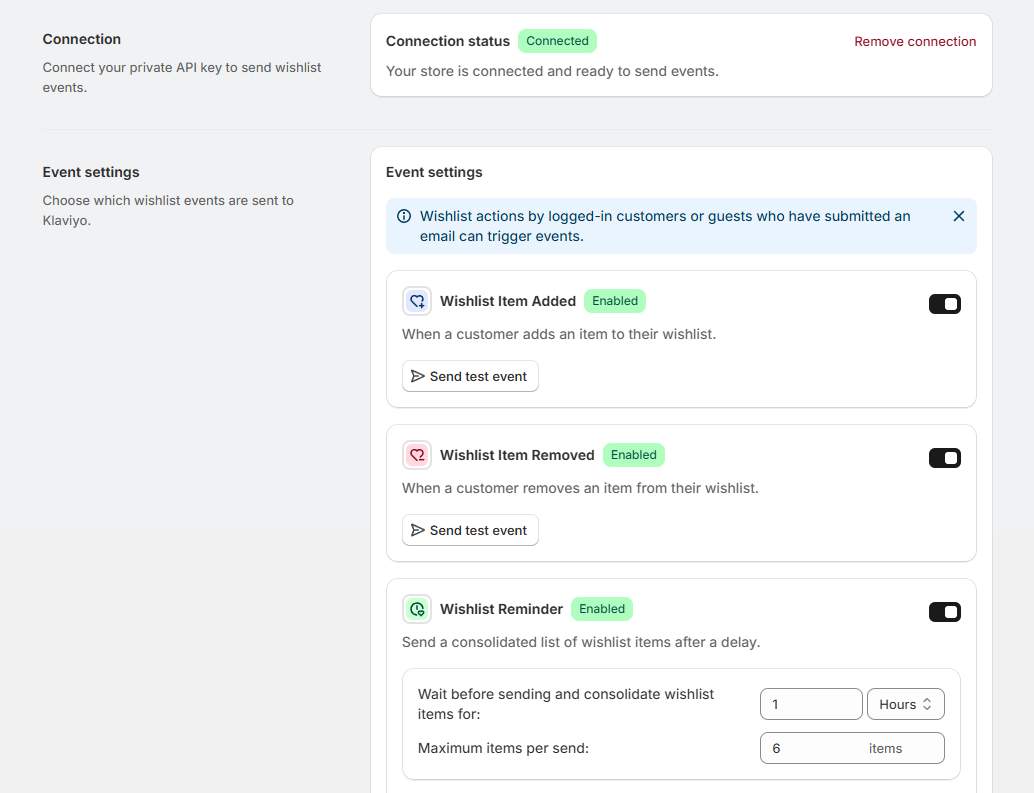
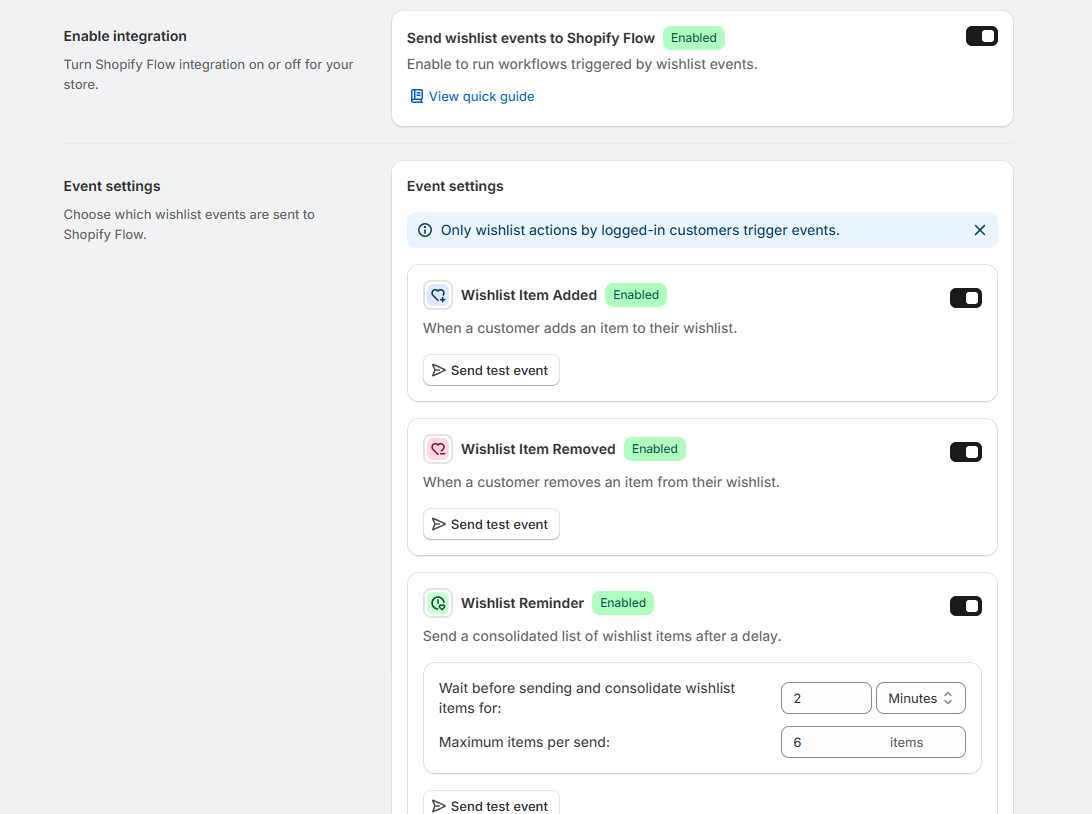
<p>Use <strong>Event settings</strong> to enable only the metrics you plan to use. The integration has one global switch and a separate switch for each event.</p>
<figure><img src="https://tvaluewishlist.com/assets/images/tvalue-klaviyo-event-settings-bf56828a8e3b3f570f7e5816383e76eb.png" alt="TValue Klaviyo integration showing a connected account and enabled wishlist event settings"><figcaption><p>After connecting Klaviyo, each wishlist event can be enabled and tested independently.</p></figcaption></figure>
<p>Three events also have their own delivery settings:</p>
<table><thead><tr><th>Event</th><th>Setting in TValue</th><th>Effect</th></tr></thead><tbody><tr><td><strong>Wishlist Reminder</strong></td><td>Delay and maximum items per send</td><td>Waits after the first qualifying save, groups later saves during that period, and limits the number of products in the event.</td></tr><tr><td><strong>Wishlist Item Price Drop</strong></td><td>Price-drop percentage</td><td>Sends when the detected reduction meets or exceeds the selected percentage.</td></tr><tr><td><strong>Wishlist Item Low Stock</strong></td><td>Inventory quantity</td><td>Sends when stock reaches or falls below the selected quantity.</td></tr></tbody></table>
<p>Select the currency used to format product prices in the event data. This matters when the Klaviyo email displays prices from TValue's event properties.</p>
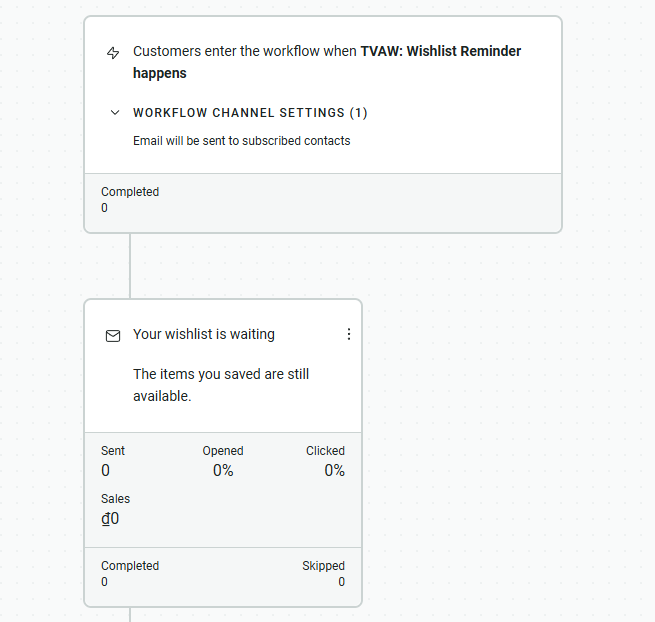
<p>Wishlist Reminder timing deserves particular attention. Its delay runs in TValue <strong>before</strong> the consolidated metric is sent to Klaviyo. Any time delay added to the Klaviyo flow begins after that, so the two delays are cumulative.</p>
<p>For example, a 6-hour reminder delay in TValue followed by a 2-hour Klaviyo flow delay produces an effective wait of about 8 hours. Use the Klaviyo delay only when the additional wait is intentional.</p>
<p>For a detailed explanation of consolidation, see <a class="" href="https://tvaluewishlist.com/resources/guides/automated-wishlist-reminder-emails-shopify/">How to Send Automated Wishlist Reminder Emails on Shopify</a>.</p>
<h2 class="anchor anchorTargetStickyNavbar_Vzrq" id="send-a-test-event">Send a test event<a href="https://tvaluewishlist.com/resources/guides/send-shopify-wishlist-events-to-klaviyo/#send-a-test-event" class="hash-link" aria-label="Direct link to Send a test event" title="Direct link to Send a test event" translate="no">​</a></h2>
<p>Test one event before building its production flow.</p>
<ol>
<li class="">In <strong>Event settings</strong>, click <strong>Send test event</strong> for the event you want to use.</li>
<li class="">Select a customer and the product data requested by the test form.</li>
<li class="">Review <strong>Event data preview</strong>.</li>
<li class="">Send the event.</li>
<li class="">Open Klaviyo and find the corresponding <code>TVAW:</code> metric.</li>
<li class="">Confirm that the profile and expected event properties arrived.</li>
</ol>
<p>The test uses customer and product data from your store and follows the same property structure as a real event. This gives Klaviyo usable preview data before the flow receives live wishlist activity.</p>
<p>Keep the Klaviyo message in draft or manual mode while testing. A test event is sent to Klaviyo as an actual metric and can enter a live metric-triggered flow if its filters allow it.</p>
<h2 class="anchor anchorTargetStickyNavbar_Vzrq" id="build-a-metric-triggered-flow-in-klaviyo">Build a metric-triggered flow in Klaviyo<a href="https://tvaluewishlist.com/resources/guides/send-shopify-wishlist-events-to-klaviyo/#build-a-metric-triggered-flow-in-klaviyo" class="hash-link" aria-label="Direct link to Build a metric-triggered flow in Klaviyo" title="Direct link to Build a metric-triggered flow in Klaviyo" translate="no">​</a></h2>
<p>After Klaviyo has received the metric:</p>
<ol>
<li class="">Create a new flow in Klaviyo.</li>
<li class="">Choose <strong>Metric</strong> as the flow trigger.</li>
<li class="">Select the relevant <code>TVAW:</code> metric.</li>
<li class="">Add trigger filters or flow filters only when they serve a clear targeting rule.</li>
<li class="">Add the email or SMS messages for that event.</li>
<li class="">Preview the message with the test event data.</li>
<li class="">Keep the flow in draft or manual mode until the content and timing have been verified.</li>
</ol>
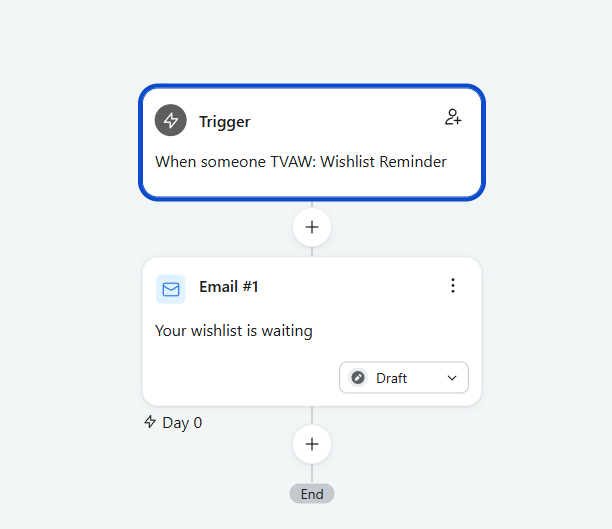
<figure><img src="https://tvaluewishlist.com/assets/images/klaviyo-wishlist-reminder-flow-30367835b2b75c29aa79af9a627f09c9.png" alt="Klaviyo flow triggered by the TValue Wishlist Reminder metric with a draft email"><figcaption><p>A Klaviyo flow using the TValue Wishlist Reminder metric as its trigger.</p></figcaption></figure>
<p>Klaviyo explains that a metric-triggered flow can run every time a profile performs the corresponding action unless its filters or re-entry rules limit qualification. Review <a href="https://help.klaviyo.com/hc/en-us/articles/360003057151" target="_blank" rel="noopener noreferrer" class="">Klaviyo's metric-triggered flow documentation</a> before activating the flow.</p>
<p>Use one primary intent per flow:</p>
<ul>
<li class=""><strong>Wishlist Item Added</strong> can begin an immediate workflow based on a new save.</li>
<li class=""><strong>Wishlist Reminder</strong> is better when TValue should first group several recent saves into one event.</li>
<li class=""><strong>Price Drop</strong>, <strong>Back In Stock</strong>, and <strong>Low Stock</strong> should explain the specific product change.</li>
<li class=""><strong>Wishlist Item Removed</strong> can update your downstream logic, but should not automatically be treated as a reason to send a promotional email.</li>
</ul>
<h2 class="anchor anchorTargetStickyNavbar_Vzrq" id="add-wishlist-products-to-the-klaviyo-email">Add wishlist products to the Klaviyo email<a href="https://tvaluewishlist.com/resources/guides/send-shopify-wishlist-events-to-klaviyo/#add-wishlist-products-to-the-klaviyo-email" class="hash-link" aria-label="Direct link to Add wishlist products to the Klaviyo email" title="Direct link to Add wishlist products to the Klaviyo email" translate="no">​</a></h2>
<p>TValue includes prebuilt product blocks for:</p>
<ul>
<li class="">Wishlist reminder and Wishlist Item Added</li>
<li class="">Price drop</li>
<li class="">Back in stock</li>
<li class="">Low stock</li>
</ul>
<p>To use one:</p>
<ol>
<li class="">Open <strong>Integrations &gt; Klaviyo &gt; Email templates</strong> in TValue.</li>
<li class="">Choose the product block that matches the flow event.</li>
<li class="">Click <strong>Preview and edit</strong> to adjust its visual settings.</li>
<li class="">Copy the generated HTML.</li>
<li class="">Open the corresponding flow email in Klaviyo.</li>
<li class="">Add an <strong>HTML block</strong> and paste the copied code.</li>
<li class="">Preview the email using the matching <code>TVAW:</code> event data.</li>
</ol>
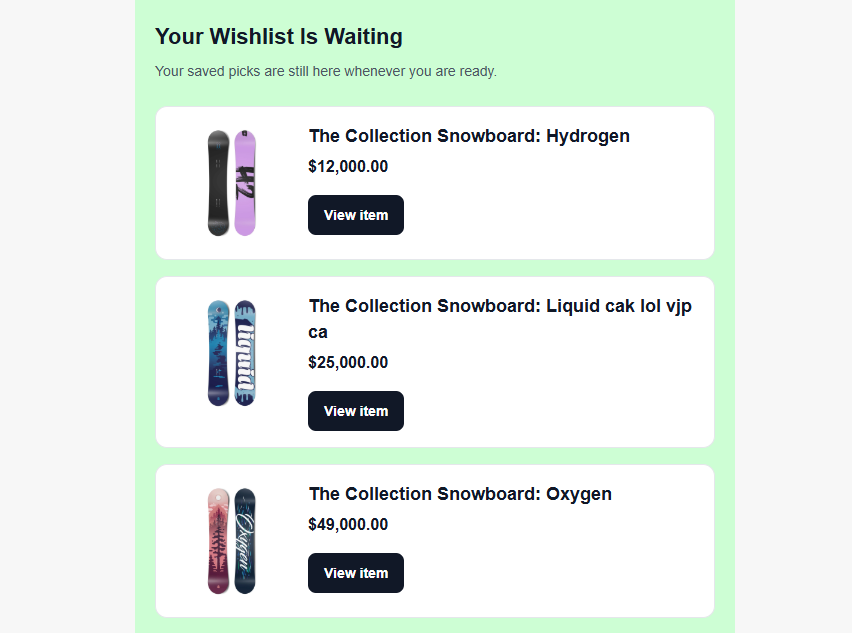
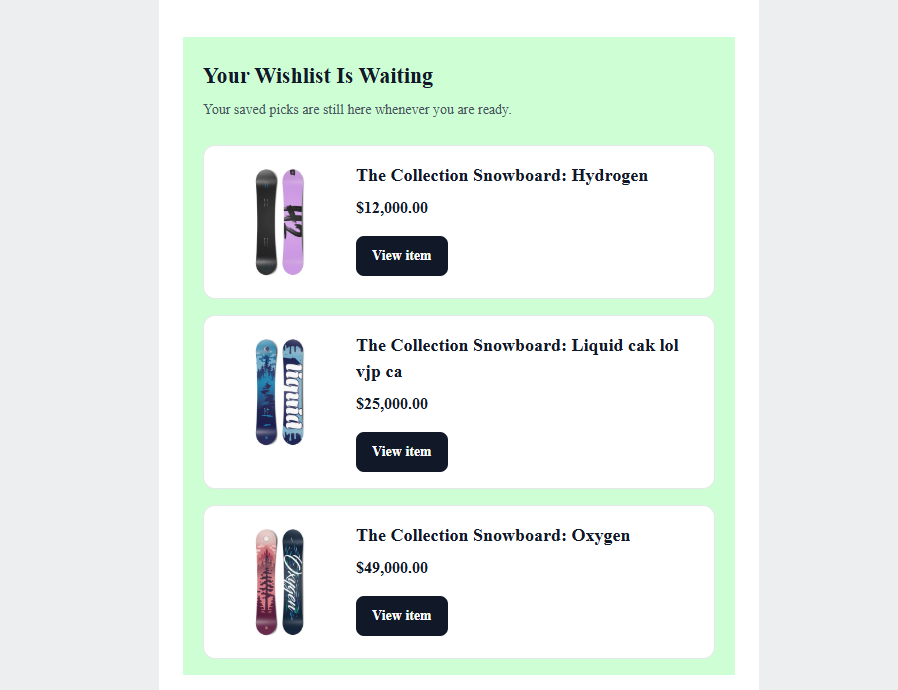
<figure><img src="https://tvaluewishlist.com/assets/images/klaviyo-wishlist-email-product-block-d8eb502e6b1935599b337ffde80ecb58.png" alt="Preview of a Klaviyo wishlist reminder email product block created with TValue"><figcaption><p>A Wishlist Reminder product block populated with saved products from the triggering event.</p></figcaption></figure>
<p>The copied code is a dynamic product block, not a complete Klaviyo flow. Its variables are populated from the event that triggered the message, so use the block with its supported metric and test it inside that flow before publishing.</p>
<p>Klaviyo supports custom code through an HTML block and supports arrays of event variables for repeated product data. See Klaviyo's guides to the <a href="https://help.klaviyo.com/hc/en-us/articles/4407911841435" target="_blank" rel="noopener noreferrer" class="">email template editor</a> and <a href="https://help.klaviyo.com/hc/en-us/articles/115002779071" target="_blank" rel="noopener noreferrer" class="">event-data personalization</a>.</p>
<h2 class="anchor anchorTargetStickyNavbar_Vzrq" id="review-event-logs-in-tvalue">Review Event logs in TValue<a href="https://tvaluewishlist.com/resources/guides/send-shopify-wishlist-events-to-klaviyo/#review-event-logs-in-tvalue" class="hash-link" aria-label="Direct link to Review Event logs in TValue" title="Direct link to Review Event logs in TValue" translate="no">​</a></h2>
<p>Open <strong>Integrations &gt; Klaviyo &gt; Event logs</strong> to check what TValue attempted to send. Logs can be filtered by event, status, and date range.</p>
<p>Open a log to review:</p>
<ul>
<li class="">Whether the event is pending, sent, skipped, or failed</li>
<li class="">The customer profile associated with it</li>
<li class="">Product or consolidated wishlist data</li>
<li class="">The event properties payload</li>
<li class="">The failure or skip reason when available</li>
</ul>
<p>The two platforms answer different questions:</p>
<ul>
<li class=""><strong>TValue Event logs:</strong> Did the app prepare and send the expected event data?</li>
<li class=""><strong>Klaviyo flow activity:</strong> Did Klaviyo accept the profile into the flow, and what happened to its messages afterward?</li>
</ul>
<p>Check TValue first when the metric or product data is missing. Check Klaviyo flow activity when the metric arrived but the profile did not receive the expected message.</p>
<h2 class="anchor anchorTargetStickyNavbar_Vzrq" id="launch-checklist">Launch checklist<a href="https://tvaluewishlist.com/resources/guides/send-shopify-wishlist-events-to-klaviyo/#launch-checklist" class="hash-link" aria-label="Direct link to Launch checklist" title="Direct link to Launch checklist" translate="no">​</a></h2>
<p>Before setting a Klaviyo flow live, confirm that:</p>
<ul>
<li class="">The integration and the required event are enabled.</li>
<li class="">The Private API Key connection shows <strong>Connected</strong>.</li>
<li class="">A test event appears under the correct <code>TVAW:</code> metric.</li>
<li class="">Product, variant, price, and URL data render correctly in the email.</li>
<li class="">Reminder and Klaviyo delays do not create an unintended combined wait.</li>
<li class="">The same event is not sending duplicate emails from TValue and Klaviyo.</li>
<li class="">Klaviyo consent, sending, and re-entry rules match the store's messaging policy.</li>
<li class="">TValue Event logs and Klaviyo flow activity can both be checked after launch.</li>
</ul>
<p>For the complete setting reference and troubleshooting details, see the <a class="" href="https://tvaluewishlist.com/docs/integrations/klaviyo/">TValue Klaviyo documentation</a>. To use wishlist events in another workflow system, continue with <a class="" href="https://tvaluewishlist.com/resources/guides/send-shopify-wishlist-events-to-omnisend/">How to Send Shopify Wishlist Events to Omnisend</a> or <a class="" href="https://tvaluewishlist.com/resources/guides/use-wishlist-events-in-shopify-flow/">How to Use Wishlist Events in Shopify Flow</a>.</p>
<p><a href="https://apps.shopify.com/tvalue-wishlist" target="_blank" rel="noopener noreferrer" class="">Install True Value Wishlist Email on Shopify</a></p>]]></content>
        <author>
            <name>TValueApps Team</name>
            <uri>https://tvaluewishlist.com</uri>
        </author>
    </entry>
    <entry>
        <title type="html"><![CDATA[How to Send Shopify Wishlist Events to Omnisend]]></title>
        <id>https://tvaluewishlist.com/resources/guides/send-shopify-wishlist-events-to-omnisend/</id>
        <link href="https://tvaluewishlist.com/resources/guides/send-shopify-wishlist-events-to-omnisend/"/>
        <updated>2026-07-13T00:00:00.000Z</updated>
        <summary type="html"><![CDATA[Connect Shopify wishlist activity to Omnisend, test six TValue custom events, build automation workflows, and display saved products in emails.]]></summary>
        <content type="html"><![CDATA[<p>To send Shopify wishlist activity to Omnisend, connect <strong>TValue: Wishlist</strong> with an Omnisend API key, enable the events you need, and send a test event. TValue creates identifiable <code>TVAW:</code> custom events that can trigger Omnisend automation workflows and provide saved-product data to their messages.</p>
<p>TValue determines when an enabled event is ready and sends its contact and wishlist data. Omnisend controls the workflow filters, delays, channels, and messages that run after the custom event arrives.</p>
<!-- -->
<h2 class="anchor anchorTargetStickyNavbar_Vzrq" id="what-tvalue-sends-to-omnisend">What TValue sends to Omnisend<a href="https://tvaluewishlist.com/resources/guides/send-shopify-wishlist-events-to-omnisend/#what-tvalue-sends-to-omnisend" class="hash-link" aria-label="Direct link to What TValue sends to Omnisend" title="Direct link to What TValue sends to Omnisend" translate="no">​</a></h2>
<p>The integration provides six custom events:</p>
<table><thead><tr><th>TValue event</th><th>Custom event in Omnisend</th><th>When it is sent</th></tr></thead><tbody><tr><td><strong>Wishlist Item Added</strong></td><td><code>TVAW: Wishlist Item Added</code></td><td>An identifiable shopper adds a product to their wishlist.</td></tr><tr><td><strong>Wishlist Item Removed</strong></td><td><code>TVAW: Wishlist Item Removed</code></td><td>An identifiable shopper removes a product from their wishlist.</td></tr><tr><td><strong>Wishlist Reminder</strong></td><td><code>TVAW: Wishlist Reminder</code></td><td>The configured delay ends and eligible saved items are consolidated into one event.</td></tr><tr><td><strong>Wishlist Item Price Drop</strong></td><td><code>TVAW: Wishlist Item Price Drop</code></td><td>A saved product reaches the configured price-drop threshold.</td></tr><tr><td><strong>Wishlist Item Back In Stock</strong></td><td><code>TVAW: Wishlist Item Back In Stock</code></td><td>A saved product becomes available again.</td></tr><tr><td><strong>Wishlist Item Low Stock</strong></td><td><code>TVAW: Wishlist Item Low Stock</code></td><td>A saved product reaches or falls below the configured inventory threshold.</td></tr></tbody></table>
<p>Omnisend custom events require an identified contact. TValue can send them for logged-in customers and guests who have submitted an email address. A guest who has not provided an email cannot be associated with an Omnisend contact for these events.</p>
<p>Depending on the event, its properties can include customer identity, product and variant details, storefront URLs, images, formatted prices, added time, price changes, inventory changes, or an array of consolidated wishlist products.</p>
<h2 class="anchor anchorTargetStickyNavbar_Vzrq" id="built-in-automation-or-omnisend">Built-in automation or Omnisend?<a href="https://tvaluewishlist.com/resources/guides/send-shopify-wishlist-events-to-omnisend/#built-in-automation-or-omnisend" class="hash-link" aria-label="Direct link to Built-in automation or Omnisend?" title="Direct link to Built-in automation or Omnisend?" translate="no">​</a></h2>
<p>TValue's <a class="" href="https://tvaluewishlist.com/docs/emails/overview/">built-in email automations</a> and Omnisend workflows are separate delivery paths.</p>
<table><thead><tr><th>Use built-in TValue automations when</th><th>Use Omnisend when</th></tr></thead><tbody><tr><td>You want to configure and monitor the complete email flow inside the wishlist app</td><td>Omnisend already manages your store's marketing automations</td></tr><tr><td>You want TValue templates, Smart Translation, discount blocks, and Email history</td><td>You want to combine wishlist events with Omnisend audience filters and multichannel workflows</td></tr><tr><td>You prefer one system to control both event timing and email delivery</td><td>You need a longer sequence of Omnisend messages after the wishlist event</td></tr></tbody></table>
<p>Avoid sending the same customer notification through both paths unless the overlap is intentional. An enabled TValue price-drop email and an active Omnisend price-drop workflow can otherwise respond to the same product change with two messages.</p>
<h2 class="anchor anchorTargetStickyNavbar_Vzrq" id="connect-tvalue-to-omnisend">Connect TValue to Omnisend<a href="https://tvaluewishlist.com/resources/guides/send-shopify-wishlist-events-to-omnisend/#connect-tvalue-to-omnisend" class="hash-link" aria-label="Direct link to Connect TValue to Omnisend" title="Direct link to Connect TValue to Omnisend" translate="no">​</a></h2>
<h3 class="anchor anchorTargetStickyNavbar_Vzrq" id="1-create-an-omnisend-api-key">1. Create an Omnisend API key<a href="https://tvaluewishlist.com/resources/guides/send-shopify-wishlist-events-to-omnisend/#1-create-an-omnisend-api-key" class="hash-link" aria-label="Direct link to 1. Create an Omnisend API key" title="Direct link to 1. Create an Omnisend API key" translate="no">​</a></h3>
<p>In Omnisend:</p>
<ol>
<li class="">Open <strong>Store Settings &gt; API keys</strong>.</li>
<li class="">Click <strong>Create API key</strong>.</li>
<li class="">Enter a recognizable name, such as <code>TValue Wishlist</code>.</li>
<li class="">Select <strong>Events</strong> permission.</li>
<li class="">Create the key and copy it.</li>
</ol>
<p>Omnisend does not display the key again after the creation screen is closed. See Omnisend's current instructions for <a href="https://support.omnisend.com/en/articles/1061890-generate-an-api-key-in-omnisend" target="_blank" rel="noopener noreferrer" class="">generating an API key</a>.</p>
<h3 class="anchor anchorTargetStickyNavbar_Vzrq" id="2-connect-the-integration">2. Connect the integration<a href="https://tvaluewishlist.com/resources/guides/send-shopify-wishlist-events-to-omnisend/#2-connect-the-integration" class="hash-link" aria-label="Direct link to 2. Connect the integration" title="Direct link to 2. Connect the integration" translate="no">​</a></h3>
<p>In TValue: Wishlist:</p>
<ol>
<li class="">Go to <strong>Integrations &gt; Omnisend</strong>.</li>
<li class="">Turn on <strong>Enable integration</strong>.</li>
<li class="">Paste the key into <strong>API key</strong> and click <strong>Connect</strong>.</li>
<li class="">Confirm that the connection status changes to <strong>Connected</strong>.</li>
<li class="">Save the integration settings.</li>
</ol>
<p>If the key is deleted or revoked in Omnisend, TValue can no longer submit events. Create a new key with Events permission and reconnect the store.</p>
<h2 class="anchor anchorTargetStickyNavbar_Vzrq" id="choose-and-configure-events">Choose and configure events<a href="https://tvaluewishlist.com/resources/guides/send-shopify-wishlist-events-to-omnisend/#choose-and-configure-events" class="hash-link" aria-label="Direct link to Choose and configure events" title="Direct link to Choose and configure events" translate="no">​</a></h2>
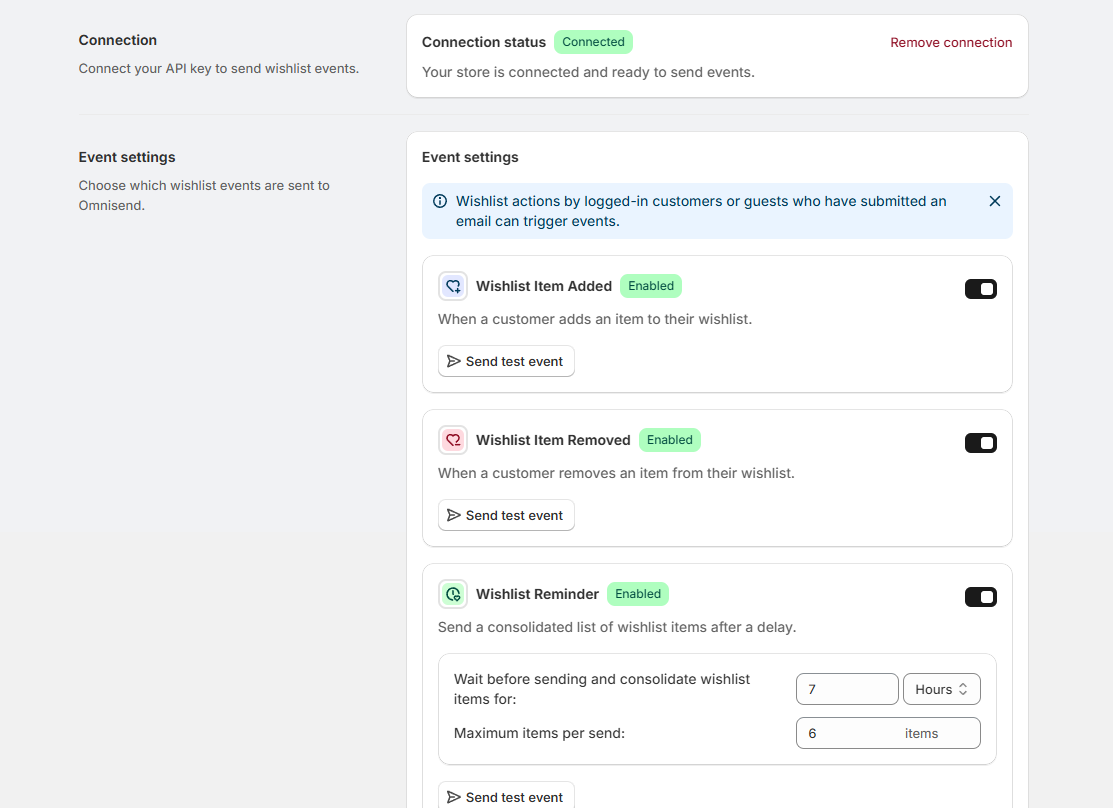
<p>Use <strong>Event settings</strong> to enable only the custom events you intend to use in Omnisend. Three events also require a delivery rule in TValue:</p>
<figure><img src="https://tvaluewishlist.com/assets/images/tvalue-omnisend-event-settings-eec43be5c8f34aa3c1db6f2cf9d309de.png" alt="TValue Omnisend integration showing a connected account and enabled wishlist event settings"><figcaption><p>After connecting Omnisend, each wishlist event can be enabled, configured, and tested independently.</p></figcaption></figure>
<table><thead><tr><th>Event</th><th>Setting</th><th>What it controls</th></tr></thead><tbody><tr><td><strong>Wishlist Reminder</strong></td><td>Delay and maximum items per send</td><td>How long TValue collects recent saves and how many products are included in the consolidated event.</td></tr><tr><td><strong>Wishlist Item Price Drop</strong></td><td>Price-drop percentage</td><td>The minimum detected reduction required before the event is sent.</td></tr><tr><td><strong>Wishlist Item Low Stock</strong></td><td>Inventory quantity</td><td>The quantity at or below which the event is sent.</td></tr></tbody></table>
<p>Select the currency code used to format prices in event properties. This ensures that product blocks and personalized fields use the intended display currency.</p>
<p>The Wishlist Reminder delay runs in TValue before Omnisend receives the event. If the Omnisend workflow adds another delay, the two waits are cumulative. For example, a 6-hour TValue reminder delay followed by a 2-hour Omnisend delay creates an effective wait of about 8 hours.</p>
<p>Read <a class="" href="https://tvaluewishlist.com/resources/guides/automated-wishlist-reminder-emails-shopify/">How to Send Automated Wishlist Reminder Emails on Shopify</a> for the complete consolidation behavior.</p>
<h2 class="anchor anchorTargetStickyNavbar_Vzrq" id="send-the-first-custom-event">Send the first custom event<a href="https://tvaluewishlist.com/resources/guides/send-shopify-wishlist-events-to-omnisend/#send-the-first-custom-event" class="hash-link" aria-label="Direct link to Send the first custom event" title="Direct link to Send the first custom event" translate="no">​</a></h2>
<p>Omnisend only shows a custom event in its automation trigger list after that event has been received at least once. Send a test event from TValue before creating the workflow:</p>
<ol>
<li class="">Find the event under <strong>Event settings</strong>.</li>
<li class="">Click <strong>Send test event</strong>.</li>
<li class="">Select the customer and product data requested by the form.</li>
<li class="">Review <strong>Event data preview</strong>.</li>
<li class="">Send the event.</li>
<li class="">In Omnisend, confirm that the matching <code>TVAW:</code> custom event now exists.</li>
</ol>
<p>The test uses controlled data from your store and follows the same property structure as a real event. It also gives Omnisend sample properties that can be selected when configuring workflow conditions and content.</p>
<p>Omnisend documents how API custom events become workflow triggers and provide fields for personalization in <a href="https://support.omnisend.com/en/articles/1475482-create-and-manage-custom-events-in-omnisend" target="_blank" rel="noopener noreferrer" class="">Create and Manage Custom Events</a>.</p>
<h2 class="anchor anchorTargetStickyNavbar_Vzrq" id="build-the-omnisend-automation">Build the Omnisend automation<a href="https://tvaluewishlist.com/resources/guides/send-shopify-wishlist-events-to-omnisend/#build-the-omnisend-automation" class="hash-link" aria-label="Direct link to Build the Omnisend automation" title="Direct link to Build the Omnisend automation" translate="no">​</a></h2>
<p>After Omnisend has received the custom event:</p>
<ol>
<li class="">Go to <strong>Automations</strong> and create a workflow from scratch.</li>
<li class="">Choose the corresponding <code>TVAW:</code> custom event as the trigger.</li>
<li class="">Add trigger filters when the workflow should respond only to particular event properties.</li>
<li class="">Add audience filters or splits when the next step depends on contact data.</li>
<li class="">Add the email, SMS, or push notification steps required by the workflow.</li>
<li class="">Preview the event fields and test the message before enabling the workflow.</li>
</ol>
<figure><img src="https://tvaluewishlist.com/assets/images/omnisend-wishlist-reminder-workflow-f3ee8f820658726a2e2bb779daae5de9.png" alt="Omnisend workflow triggered by the TValue Wishlist Reminder custom event with an email step"><figcaption><p>An Omnisend workflow using the TValue Wishlist Reminder custom event as its trigger.</p></figcaption></figure>
<p>Keep each workflow tied to the meaning of its trigger:</p>
<ul>
<li class=""><strong>Wishlist Item Added</strong> is an immediate save event and can use an Omnisend delay when follow-up should happen later.</li>
<li class=""><strong>Wishlist Reminder</strong> already waits and groups saved products in TValue before it reaches Omnisend.</li>
<li class=""><strong>Price Drop</strong>, <strong>Back In Stock</strong>, and <strong>Low Stock</strong> should explain the product change that triggered the workflow.</li>
<li class=""><strong>Wishlist Item Removed</strong> is useful for downstream logic, but removal alone is not necessarily a reason to send a promotional message.</li>
</ul>
<p>Omnisend event data is available inside the workflow triggered by that event. It can be used in trigger filters, splits, and personalized message content. See <a href="https://support.omnisend.com/en/articles/4298431-understand-event-data-in-automation-workflows" target="_blank" rel="noopener noreferrer" class="">Omnisend's event-data guide</a>.</p>
<h2 class="anchor anchorTargetStickyNavbar_Vzrq" id="add-wishlist-products-to-an-omnisend-email">Add wishlist products to an Omnisend email<a href="https://tvaluewishlist.com/resources/guides/send-shopify-wishlist-events-to-omnisend/#add-wishlist-products-to-an-omnisend-email" class="hash-link" aria-label="Direct link to Add wishlist products to an Omnisend email" title="Direct link to Add wishlist products to an Omnisend email" translate="no">​</a></h2>
<p>TValue includes editable product blocks for:</p>
<ul>
<li class="">Wishlist reminder and Wishlist Item Added</li>
<li class="">Price drop</li>
<li class="">Back in stock</li>
<li class="">Low stock</li>
</ul>
<p>To add one to an automation email:</p>
<ol>
<li class="">Open <strong>Integrations &gt; Omnisend &gt; Email templates</strong> in TValue.</li>
<li class="">Select the block that matches the custom event.</li>
<li class="">Click <strong>Preview and edit</strong> and adjust its visual settings.</li>
<li class="">Copy the generated HTML.</li>
<li class="">Open the matching automation email in Omnisend.</li>
<li class="">Drag a <strong>Custom HTML</strong> block into the Email Builder.</li>
<li class="">Paste the generated code and save the block.</li>
<li class="">Preview the email with data from the corresponding event.</li>
</ol>
<figure><img src="https://tvaluewishlist.com/assets/images/omnisend-wishlist-email-product-block-bfe33d2d476359095ef5537db2686703.png" alt="Preview of an Omnisend wishlist reminder email product block created with TValue"><figcaption><p>A Wishlist Reminder product block populated with saved products from the triggering Omnisend event.</p></figcaption></figure>
<p>The generated code is a product block, not a complete Omnisend workflow or email. Its variables depend on the event properties supplied by TValue, so use it with its supported custom event and test the rendered products before enabling the automation.</p>
<p>Omnisend's Custom HTML block accepts body content inside an email and should be tested across the inboxes that matter to the store. See <a href="https://support.omnisend.com/en/articles/1061866-add-configure-custom-html-item" target="_blank" rel="noopener noreferrer" class="">Add and Configure a Custom HTML Item</a>.</p>
<h2 class="anchor anchorTargetStickyNavbar_Vzrq" id="review-event-logs">Review Event logs<a href="https://tvaluewishlist.com/resources/guides/send-shopify-wishlist-events-to-omnisend/#review-event-logs" class="hash-link" aria-label="Direct link to Review Event logs" title="Direct link to Review Event logs" translate="no">​</a></h2>
<p>Open <strong>Integrations &gt; Omnisend &gt; Event logs</strong> to review real and test events. Filter the list by event, status, or date range.</p>
<p>Each log can show:</p>
<ul>
<li class="">Whether the event is pending, sent, skipped, or failed</li>
<li class="">The contact associated with the event</li>
<li class="">Product or consolidated wishlist data</li>
<li class="">The complete event properties payload</li>
<li class="">The failure or skip reason when available</li>
</ul>
<p>Use the two systems together:</p>
<ul>
<li class=""><strong>TValue Event logs</strong> confirm what the app attempted to submit.</li>
<li class=""><strong>Omnisend automation activity</strong> shows whether the contact entered the workflow and what happened afterward.</li>
</ul>
<p>If no custom event arrives, start with the connection, event switch, contact identity, and TValue log. If the event arrives but the message does not send, inspect the Omnisend trigger, filters, channel eligibility, and workflow status.</p>
<h2 class="anchor anchorTargetStickyNavbar_Vzrq" id="launch-checklist">Launch checklist<a href="https://tvaluewishlist.com/resources/guides/send-shopify-wishlist-events-to-omnisend/#launch-checklist" class="hash-link" aria-label="Direct link to Launch checklist" title="Direct link to Launch checklist" translate="no">​</a></h2>
<p>Before enabling the Omnisend workflow, confirm that:</p>
<ul>
<li class="">The integration is enabled and the API key shows <strong>Connected</strong>.</li>
<li class="">The required event is enabled in TValue.</li>
<li class="">A test event appears under the correct <code>TVAW:</code> custom event.</li>
<li class="">Product, variant, price, image, and URL properties render correctly.</li>
<li class="">TValue and Omnisend delays do not create an unintended combined wait.</li>
<li class="">The same event is not sending duplicate emails through two systems.</li>
<li class="">Omnisend audience, consent, frequency, and channel settings match the store's messaging policy.</li>
<li class="">Both TValue Event logs and Omnisend automation activity can be checked after launch.</li>
</ul>
<p>For the full setting reference, see the <a class="" href="https://tvaluewishlist.com/docs/integrations/omnisend/">TValue Omnisend documentation</a>. To use the same wishlist activity in Shopify's workflow builder instead, continue with <a class="" href="https://tvaluewishlist.com/resources/guides/use-wishlist-events-in-shopify-flow/">How to Use Wishlist Events in Shopify Flow</a>.</p>
<p><a href="https://apps.shopify.com/tvalue-wishlist" target="_blank" rel="noopener noreferrer" class="">Install True Value Wishlist Email on Shopify</a></p>]]></content>
        <author>
            <name>TValueApps Team</name>
            <uri>https://tvaluewishlist.com</uri>
        </author>
    </entry>
    <entry>
        <title type="html"><![CDATA[How to Use Wishlist Events in Shopify Flow]]></title>
        <id>https://tvaluewishlist.com/resources/guides/use-wishlist-events-in-shopify-flow/</id>
        <link href="https://tvaluewishlist.com/resources/guides/use-wishlist-events-in-shopify-flow/"/>
        <updated>2026-07-13T00:00:00.000Z</updated>
        <summary type="html"><![CDATA[Use six TValue wishlist triggers in Shopify Flow, map customer and product data into conditions and actions, send test events, and inspect workflow runs.]]></summary>
        <content type="html"><![CDATA[<p><strong>TValue: Wishlist</strong> adds six wishlist triggers to Shopify Flow. After enabling the integration and the events you need, you can start workflows from wishlist additions, removals, reminders, price drops, back-in-stock changes, and low-stock changes without connecting an external API key.</p>
<p>TValue sends the trigger and its wishlist data. Shopify Flow then evaluates the conditions and performs the actions defined by the merchant, such as updating customer data, notifying a team, or passing information to another Flow-compatible app.</p>
<!-- -->
<h2 class="anchor anchorTargetStickyNavbar_Vzrq" id="what-shopify-flow-does-with-wishlist-events">What Shopify Flow does with wishlist events<a href="https://tvaluewishlist.com/resources/guides/use-wishlist-events-in-shopify-flow/#what-shopify-flow-does-with-wishlist-events" class="hash-link" aria-label="Direct link to What Shopify Flow does with wishlist events" title="Direct link to What Shopify Flow does with wishlist events" translate="no">​</a></h2>
<p>A Flow workflow has one trigger followed by any conditions and actions needed for that use case:</p>
<table><thead><tr><th>Component</th><th>Role in a TValue workflow</th></tr></thead><tbody><tr><td><strong>Trigger</strong></td><td>A wishlist action or product change sent by TValue starts the workflow.</td></tr><tr><td><strong>Condition</strong></td><td>Flow evaluates customer, product, variant, price, inventory, or test-event data.</td></tr><tr><td><strong>Action</strong></td><td>Shopify or a compatible app performs the task selected by the merchant.</td></tr></tbody></table>
<p>Shopify documents this trigger-condition-action model in <a href="https://help.shopify.com/en/manual/shopify-flow/create" target="_blank" rel="noopener noreferrer" class="">Creating workflows in Shopify Flow</a>.</p>
<p>Unlike Klaviyo and Omnisend, Flow does not automatically represent an email-marketing destination. It is a general workflow layer. The action might tag a customer, send an internal notification, add data to another service, or invoke an action supplied by a Flow-compatible app.</p>
<h2 class="anchor anchorTargetStickyNavbar_Vzrq" id="available-tvalue-triggers">Available TValue triggers<a href="https://tvaluewishlist.com/resources/guides/use-wishlist-events-in-shopify-flow/#available-tvalue-triggers" class="hash-link" aria-label="Direct link to Available TValue triggers" title="Direct link to Available TValue triggers" translate="no">​</a></h2>
<p>Enable any of these app triggers in TValue:</p>
<table><thead><tr><th>Shopify Flow trigger</th><th>When TValue sends it</th><th>Main data available</th></tr></thead><tbody><tr><td><strong>Wishlist Item Added</strong></td><td>A logged-in customer adds a product to their wishlist.</td><td>Customer and product references, saved product and variant details, price, URL, image, and added time.</td></tr><tr><td><strong>Wishlist Item Removed</strong></td><td>A logged-in customer removes a product from their wishlist.</td><td>Customer and product references plus product and variant details at removal time.</td></tr><tr><td><strong>Wishlist Reminder</strong></td><td>The configured delay ends and eligible saved items are consolidated.</td><td>Customer reference and a list of wishlist products.</td></tr><tr><td><strong>Wishlist Item Price Drop</strong></td><td>A saved product reaches the configured price-drop percentage.</td><td>Customer and product references, previous price, new price, and product details.</td></tr><tr><td><strong>Wishlist Item Back In Stock</strong></td><td>A saved product becomes available again.</td><td>Customer and product references, current inventory, price, and product details.</td></tr><tr><td><strong>Wishlist Item Low Stock</strong></td><td>A saved product reaches or falls below the configured quantity.</td><td>Customer and product references, previous and current inventory, threshold, price, and product details.</td></tr></tbody></table>
<p>Shopify Flow events require a Shopify customer reference. For this reason, only wishlist activity associated with <strong>logged-in customers</strong> can trigger this integration. Guest wishlist activity does not trigger Shopify Flow, even when the guest has left an email address.</p>
<h2 class="anchor anchorTargetStickyNavbar_Vzrq" id="when-to-use-shopify-flow">When to use Shopify Flow<a href="https://tvaluewishlist.com/resources/guides/use-wishlist-events-in-shopify-flow/#when-to-use-shopify-flow" class="hash-link" aria-label="Direct link to When to use Shopify Flow" title="Direct link to When to use Shopify Flow" translate="no">​</a></h2>
<p>Shopify Flow is most useful when wishlist activity should affect a process beyond a single email.</p>
<p>Examples include:</p>
<ul>
<li class="">Add a customer tag after a logged-in shopper saves a product.</li>
<li class="">Notify a merchandising team when a wishlisted product reaches a meaningful inventory state.</li>
<li class="">Branch based on a product, variant, price, or inventory value supplied by the trigger.</li>
<li class="">Record wishlist activity through a Flow connector such as Google Sheets.</li>
<li class="">Pass the event to another installed app that provides a compatible Flow action.</li>
</ul>
<p>Avoid treating every trigger as an instruction to contact the customer. <strong>Wishlist Item Removed</strong>, for example, describes a change in intent but does not by itself mean the shopper should receive a promotional message.</p>
<h2 class="anchor anchorTargetStickyNavbar_Vzrq" id="enable-the-integration">Enable the integration<a href="https://tvaluewishlist.com/resources/guides/use-wishlist-events-in-shopify-flow/#enable-the-integration" class="hash-link" aria-label="Direct link to Enable the integration" title="Direct link to Enable the integration" translate="no">​</a></h2>
<p>Before setup, install the free Shopify Flow app on the store. Shopify Flow is available on Shopify's Basic, Grow, Advanced, and Plus plans, although some actions have separate plan requirements. Review <a href="https://help.shopify.com/en/manual/shopify-flow" target="_blank" rel="noopener noreferrer" class="">Shopify Flow availability and limits</a> when a workflow depends on a specific action.</p>
<p>In TValue: Wishlist:</p>
<ol>
<li class="">Go to <strong>Integrations &gt; Shopify Flow</strong>.</li>
<li class="">Turn on <strong>Enable integration</strong>.</li>
<li class="">Enable the events you plan to use.</li>
<li class="">Configure their delay or threshold settings.</li>
<li class="">Select the currency used to format price data.</li>
<li class="">Save the settings.</li>
</ol>
<figure><img src="https://tvaluewishlist.com/assets/images/tvalue-shopify-flow-event-settings-d120b8098c57c7124a7abe205af092c0.png" alt="TValue Shopify Flow integration showing enabled wishlist triggers and Wishlist Reminder settings"><figcaption><p>Shopify Flow can be enabled globally, while each wishlist trigger has its own switch and test action.</p></figcaption></figure>
<p>There is no connection section or API key. The Flow triggers are extensions supplied by the installed TValue app.</p>
<h2 class="anchor anchorTargetStickyNavbar_Vzrq" id="configure-event-timing-and-thresholds">Configure event timing and thresholds<a href="https://tvaluewishlist.com/resources/guides/use-wishlist-events-in-shopify-flow/#configure-event-timing-and-thresholds" class="hash-link" aria-label="Direct link to Configure event timing and thresholds" title="Direct link to Configure event timing and thresholds" translate="no">​</a></h2>
<p>Three Flow triggers have additional settings in TValue:</p>
<table><thead><tr><th>Trigger</th><th>Setting</th><th>Effect</th></tr></thead><tbody><tr><td><strong>Wishlist Reminder</strong></td><td>Delay and maximum items per send</td><td>Waits after the first qualifying save, groups later saves during that period, and limits the products included in one trigger.</td></tr><tr><td><strong>Wishlist Item Price Drop</strong></td><td>Price-drop percentage</td><td>Sends the trigger only when the detected reduction meets or exceeds the selected percentage.</td></tr><tr><td><strong>Wishlist Item Low Stock</strong></td><td>Inventory quantity</td><td>Sends the trigger when stock reaches or falls below the selected quantity.</td></tr></tbody></table>
<p>The Reminder delay finishes before Shopify Flow receives the trigger. If the workflow adds a <strong>Wait</strong> step, that time begins afterward and extends the total delay.</p>
<p>For the reminder batching model, see <a class="" href="https://tvaluewishlist.com/resources/guides/automated-wishlist-reminder-emails-shopify/">How to Send Automated Wishlist Reminder Emails on Shopify</a>. For price and inventory behavior, see <a class="" href="https://tvaluewishlist.com/resources/guides/wishlist-price-drop-back-in-stock-alerts-shopify/">How Shopify Wishlist Price Drop and Back-in-Stock Alerts Work</a>.</p>
<h2 class="anchor anchorTargetStickyNavbar_Vzrq" id="create-a-workflow">Create a workflow<a href="https://tvaluewishlist.com/resources/guides/use-wishlist-events-in-shopify-flow/#create-a-workflow" class="hash-link" aria-label="Direct link to Create a workflow" title="Direct link to Create a workflow" translate="no">​</a></h2>
<p>In Shopify Flow:</p>
<ol>
<li class="">Go to <strong>Apps &gt; Flow</strong>.</li>
<li class="">Click <strong>Create workflow</strong>.</li>
<li class="">Select a trigger and choose <strong>TValue: Wishlist</strong> from the installed apps.</li>
<li class="">Select one of the six wishlist triggers.</li>
<li class="">Add a condition when the workflow should branch based on trigger data.</li>
<li class="">Add the Shopify or app action that should run.</li>
<li class="">Give the workflow a specific name.</li>
<li class="">Test the logic before turning it on.</li>
</ol>
<p>Flow displays the variables made available by the selected trigger. Product-based events include Shopify customer and product references, allowing conditions and actions to work with the associated Shopify resources. The custom event fields expose wishlist, price, and inventory details that are specific to TValue.</p>
<p>For a reminder containing several saved products, the <strong>Wishlist items</strong> payload is a list. Use Flow's looping tools only when an action genuinely needs to run once per item; customer-level actions should usually remain outside that loop.</p>
<h2 class="anchor anchorTargetStickyNavbar_Vzrq" id="build-useful-conditions-and-actions">Build useful conditions and actions<a href="https://tvaluewishlist.com/resources/guides/use-wishlist-events-in-shopify-flow/#build-useful-conditions-and-actions" class="hash-link" aria-label="Direct link to Build useful conditions and actions" title="Direct link to Build useful conditions and actions" translate="no">​</a></h2>
<p>Use conditions to narrow the workflow instead of performing the same action for every event.</p>
<p>Examples:</p>
<table><thead><tr><th>Trigger</th><th>Example condition</th><th>Example action</th></tr></thead><tbody><tr><td><strong>Wishlist Item Added</strong></td><td>Product or variant matches a collection strategy</td><td>Add a customer tag or record the interest in another system.</td></tr><tr><td><strong>Wishlist Reminder</strong></td><td>Consolidated list contains qualifying products</td><td>Pass the reminder context to a compatible marketing action.</td></tr><tr><td><strong>Wishlist Item Price Drop</strong></td><td>New price or reduction fits a promotion rule</td><td>Notify a team or invoke a connected app action.</td></tr><tr><td><strong>Wishlist Item Back In Stock</strong></td><td>Restored product matches a monitored catalog area</td><td>Send an internal notification or update an external record.</td></tr><tr><td><strong>Wishlist Item Low Stock</strong></td><td>Current quantity is below a stricter operational threshold</td><td>Alert merchandising or add a row to a connected spreadsheet.</td></tr></tbody></table>
<p>The exact actions available depend on the store's Shopify plan and installed Flow-compatible apps. Keep the workflow name and notes clear enough that another staff member can understand why each wishlist trigger exists.</p>
<h2 class="anchor anchorTargetStickyNavbar_Vzrq" id="test-a-tvalue-flow-trigger-safely">Test a TValue Flow trigger safely<a href="https://tvaluewishlist.com/resources/guides/use-wishlist-events-in-shopify-flow/#test-a-tvalue-flow-trigger-safely" class="hash-link" aria-label="Direct link to Test a TValue Flow trigger safely" title="Direct link to Test a TValue Flow trigger safely" translate="no">​</a></h2>
<p>Each event in TValue has a <strong>Send test event</strong> action. Use it together with Flow's event-recording test mode:</p>
<ol>
<li class="">Keep the workflow turned off while preparing the test.</li>
<li class="">In the Flow editor, click <strong>Test your workflow</strong> and start <strong>Record events</strong>.</li>
<li class="">In TValue, choose the trigger and click <strong>Send test event</strong>.</li>
<li class="">Select a logged-in Shopify customer and the required product data.</li>
<li class="">Review <strong>Event data preview</strong>, then send the event.</li>
<li class="">Select the recorded event in Flow and inspect the path, conditions, and variable output.</li>
</ol>
<p>TValue marks the payload with <strong>Is test: true</strong>. This is an actual app trigger sent to Shopify Flow. Recording it through Flow's test mode lets you evaluate the workflow without performing actions that change store data. An early <strong>Is test</strong> condition is also useful when the team expects to send more TValue test events after the workflow is active.</p>
<p>This differs from Flow's own workflow test mode. Shopify states that a Flow test evaluates the workflow path but stops before actions that would make changes. TValue's Send test event is intended to verify the real app-trigger delivery and payload. See <a href="https://help.shopify.com/en/manual/shopify-flow/manage/test-workflow" target="_blank" rel="noopener noreferrer" class="">Testing a workflow in Shopify Flow</a> for the native test behavior.</p>
<p>A reliable test sequence is:</p>
<ol>
<li class="">Record the TValue test event and confirm the trigger data is available.</li>
<li class="">Use Flow's test tools to inspect conditions and variable output without performing live changes.</li>
<li class="">Confirm the <code>Is test</code> branch behaves as intended when one is present.</li>
<li class="">Turn on the production workflow only after the actions have been reviewed.</li>
</ol>
<h2 class="anchor anchorTargetStickyNavbar_Vzrq" id="understand-the-trigger-data">Understand the trigger data<a href="https://tvaluewishlist.com/resources/guides/use-wishlist-events-in-shopify-flow/#understand-the-trigger-data" class="hash-link" aria-label="Direct link to Understand the trigger data" title="Direct link to Understand the trigger data" translate="no">​</a></h2>
<p>All TValue triggers provide <strong>Is test</strong>. The remaining fields depend on the trigger:</p>
<ul>
<li class=""><strong>Wishlist item:</strong> one saved or removed product with variant, price, image, URL, and related details.</li>
<li class=""><strong>Wishlist items:</strong> a list of products consolidated for Wishlist Reminder.</li>
<li class=""><strong>Price drop items:</strong> product entries with old and new price values.</li>
<li class=""><strong>Back in stock items:</strong> product entries with restored inventory information.</li>
<li class=""><strong>Low stock items:</strong> product entries with previous inventory, current inventory, and the configured threshold.</li>
<li class=""><strong>Customer reference:</strong> supplied for every trigger.</li>
<li class=""><strong>Product reference:</strong> supplied for single-product and product-change triggers, but not the consolidated Wishlist Reminder trigger.</li>
</ul>
<p>Prefer Shopify customer and product references when an action expects Shopify resources. Use TValue's custom fields when the workflow needs the wishlist-specific snapshot that caused the trigger.</p>
<h2 class="anchor anchorTargetStickyNavbar_Vzrq" id="review-delivery-and-workflow-runs">Review delivery and workflow runs<a href="https://tvaluewishlist.com/resources/guides/use-wishlist-events-in-shopify-flow/#review-delivery-and-workflow-runs" class="hash-link" aria-label="Direct link to Review delivery and workflow runs" title="Direct link to Review delivery and workflow runs" translate="no">​</a></h2>
<p>Open <strong>Integrations &gt; Shopify Flow &gt; Event logs</strong> in TValue to inspect real and test trigger deliveries. Filter by event, status, or date range, then open a row to review its customer, product context, payload, and any failure details.</p>
<p>After the trigger reaches Flow, use <strong>Recent runs</strong> in Shopify Flow to inspect the workflow path, evaluated conditions, actions, and errors. Shopify documents available run filters in <a href="https://help.shopify.com/en/manual/shopify-flow/monitor" target="_blank" rel="noopener noreferrer" class="">Finding and monitoring workflow runs</a>.</p>
<p>Use the two histories for different questions:</p>
<ul>
<li class=""><strong>TValue Event logs:</strong> Did the app send the expected trigger and wishlist payload?</li>
<li class=""><strong>Shopify Flow Recent runs:</strong> Which workflow received it, which branch ran, and what happened to each action?</li>
</ul>
<p>If TValue reports a failed delivery, inspect the integration and trigger payload first. If TValue reports the trigger as sent but the expected task did not happen, inspect whether the workflow is active and whether its conditions or actions blocked the result.</p>
<h2 class="anchor anchorTargetStickyNavbar_Vzrq" id="launch-checklist">Launch checklist<a href="https://tvaluewishlist.com/resources/guides/use-wishlist-events-in-shopify-flow/#launch-checklist" class="hash-link" aria-label="Direct link to Launch checklist" title="Direct link to Launch checklist" translate="no">​</a></h2>
<p>Before activating a workflow, confirm that:</p>
<ul>
<li class="">Shopify Flow is installed and the TValue integration is enabled.</li>
<li class="">The required wishlist trigger is enabled in TValue.</li>
<li class="">The workflow uses the intended TValue trigger.</li>
<li class="">Customer and product references resolve to the expected Shopify records.</li>
<li class="">Custom wishlist, price, and inventory fields are used correctly.</li>
<li class="">Reminder and Flow Wait steps do not create an unintended combined delay.</li>
<li class="">Test events are separated from production actions.</li>
<li class="">The chosen actions are available on the store's plan and through installed apps.</li>
<li class="">TValue Event logs and Shopify Flow Recent runs can both be checked after launch.</li>
</ul>
<p>For the full trigger reference, see the <a class="" href="https://tvaluewishlist.com/docs/integrations/shopify-flow/">TValue Shopify Flow documentation</a>. For email-first automation platforms, continue with <a class="" href="https://tvaluewishlist.com/resources/guides/send-shopify-wishlist-events-to-klaviyo/">How to Send Shopify Wishlist Events to Klaviyo</a> or <a class="" href="https://tvaluewishlist.com/resources/guides/send-shopify-wishlist-events-to-omnisend/">How to Send Shopify Wishlist Events to Omnisend</a>.</p>
<p><a href="https://apps.shopify.com/tvalue-wishlist" target="_blank" rel="noopener noreferrer" class="">Install True Value Wishlist Email on Shopify</a></p>]]></content>
        <author>
            <name>TValueApps Team</name>
            <uri>https://tvaluewishlist.com</uri>
        </author>
    </entry>
    <entry>
        <title type="html"><![CDATA[How Shopify Wishlist Price Drop and Back-in-Stock Alerts Work]]></title>
        <id>https://tvaluewishlist.com/resources/guides/wishlist-price-drop-back-in-stock-alerts-shopify/</id>
        <link href="https://tvaluewishlist.com/resources/guides/wishlist-price-drop-back-in-stock-alerts-shopify/"/>
        <updated>2026-07-13T00:00:00.000Z</updated>
        <summary type="html"><![CDATA[Use wishlist price-drop, back-in-stock, and low-stock emails to notify Shopify shoppers when a saved product changes in a meaningful way.]]></summary>
        <content type="html"><![CDATA[<p>Wishlist product alerts notify Shopify shoppers when the reason they postponed a purchase changes. A price-drop alert responds to a lower price, a back-in-stock alert responds to restored availability, and a low-stock alert warns that a saved product is approaching a configured inventory threshold.</p>
<p>With <strong>TValue: Wishlist</strong>, these are separate automations. Each flow has its own trigger and email template, so the message can match the event instead of sending the same generic reminder for every situation.</p>
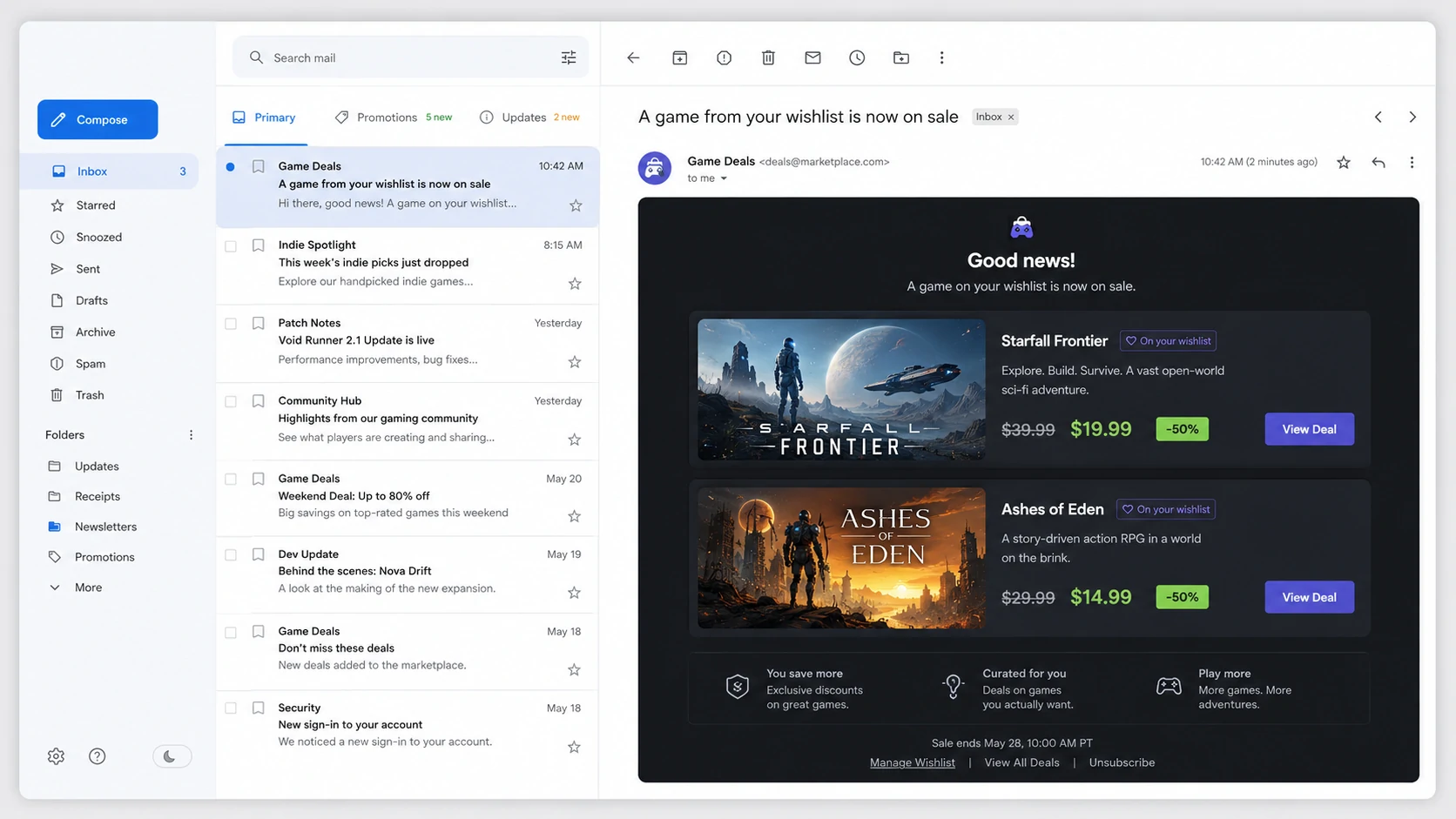
<figure><img src="https://tvaluewishlist.com/assets/images/wishlist-price-drop-email-9b189835cb359f7feac57458091fde64.webp" alt="Wishlist price-drop email showing saved products with their previous and current prices"><figcaption><p>A product alert works because something relevant changed after the shopper saved the item.</p></figcaption></figure>
<!-- -->
<h2 class="anchor anchorTargetStickyNavbar_Vzrq" id="wishlist-reminder-vs-product-alert">Wishlist reminder vs product alert<a href="https://tvaluewishlist.com/resources/guides/wishlist-price-drop-back-in-stock-alerts-shopify/#wishlist-reminder-vs-product-alert" class="hash-link" aria-label="Direct link to Wishlist reminder vs product alert" title="Direct link to Wishlist reminder vs product alert" translate="no">​</a></h2>
<p>A wishlist reminder and a product alert both bring shoppers back, but they answer different questions.</p>
<ul>
<li class=""><strong>Wishlist reminder:</strong> "Do you still want to revisit what you saved?"</li>
<li class=""><strong>Price-drop alert:</strong> "Would the new price change your decision?"</li>
<li class=""><strong>Back-in-stock alert:</strong> "Do you want to return now that the product is available?"</li>
<li class=""><strong>Low-stock alert:</strong> "Do you want to act before the remaining inventory is gone?"</li>
</ul>
<p>The reminder is time-based. Product alerts are event-based. Keeping these flows separate makes the subject line, product information, and call to action more credible.</p>
<h2 class="anchor anchorTargetStickyNavbar_Vzrq" id="compare-the-three-product-alerts">Compare the three product alerts<a href="https://tvaluewishlist.com/resources/guides/wishlist-price-drop-back-in-stock-alerts-shopify/#compare-the-three-product-alerts" class="hash-link" aria-label="Direct link to Compare the three product alerts" title="Direct link to Compare the three product alerts" translate="no">​</a></h2>
<table><thead><tr><th>Automation</th><th>Trigger</th><th>Merchant setting</th><th>Best message focus</th></tr></thead><tbody><tr><td><strong>Price drop</strong></td><td>A wishlisted product drops by at least the configured percentage</td><td>Minimum percentage drop</td><td>Previous price, current price, and return-to-product action</td></tr><tr><td><strong>Back in stock</strong></td><td>A wishlisted product becomes available again</td><td>No trigger threshold</td><td>Restored availability and direct product link</td></tr><tr><td><strong>Low stock</strong></td><td>Inventory reaches or falls below the configured quantity</td><td>Stock quantity threshold</td><td>Remaining availability and a clear, factual prompt to return</td></tr></tbody></table>
<p>Shopify tracks inventory at the product variant level when inventory tracking is enabled. Review inventory configuration before relying on inventory-based customer messages, especially when products have sizes, colors, multiple locations, or settings that allow sales beyond available stock. <a href="https://help.shopify.com/en/manual/products/inventory/setup" target="_blank" rel="noopener noreferrer" class="">Shopify Help Center: Setting up product inventory</a></p>
<h2 class="anchor anchorTargetStickyNavbar_Vzrq" id="how-price-drop-alerts-work">How price-drop alerts work<a href="https://tvaluewishlist.com/resources/guides/wishlist-price-drop-back-in-stock-alerts-shopify/#how-price-drop-alerts-work" class="hash-link" aria-label="Direct link to How price-drop alerts work" title="Direct link to How price-drop alerts work" translate="no">​</a></h2>
<p>The price-drop automation evaluates detected price changes for products shoppers have saved. The email is eligible only when the percentage drop meets or exceeds the threshold configured in the automation.</p>
<p>For example:</p>
<table><thead><tr><th>Previous price</th><th>New price</th><th>Price drop</th><th>10% threshold result</th></tr></thead><tbody><tr><td>$100</td><td>$95</td><td>5%</td><td>Does not trigger</td></tr><tr><td>$100</td><td>$90</td><td>10%</td><td>Meets the threshold</td></tr><tr><td>$100</td><td>$75</td><td>25%</td><td>Meets the threshold</td></tr></tbody></table>
<p>A lower threshold responds to smaller changes and can produce more alert activity. A higher threshold limits the flow to more substantial reductions. The right setting depends on normal pricing behavior and how often the catalog changes.</p>
<p>Use the email template to show the old and new price clearly. The shopper should understand the change without decoding a generic sale message.</p>
<h2 class="anchor anchorTargetStickyNavbar_Vzrq" id="how-back-in-stock-alerts-work">How back-in-stock alerts work<a href="https://tvaluewishlist.com/resources/guides/wishlist-price-drop-back-in-stock-alerts-shopify/#how-back-in-stock-alerts-work" class="hash-link" aria-label="Direct link to How back-in-stock alerts work" title="Direct link to How back-in-stock alerts work" translate="no">​</a></h2>
<p>The back-in-stock automation watches for a saved product becoming available again. It does not use a configurable percentage or quantity threshold.</p>
<p>This alert is most relevant when the shopper already expressed interest but could not purchase because the desired product or variant was unavailable. The email should make three things clear:</p>
<ol>
<li class="">Which saved product is available again.</li>
<li class="">That availability has changed.</li>
<li class="">Where the shopper can return to review or buy it.</li>
</ol>
<p>Avoid adding unsupported urgency such as "selling out now" unless the current inventory actually supports that statement. Back in stock means availability returned; it does not automatically mean stock is already low.</p>
<h2 class="anchor anchorTargetStickyNavbar_Vzrq" id="where-low-stock-alerts-fit">Where low-stock alerts fit<a href="https://tvaluewishlist.com/resources/guides/wishlist-price-drop-back-in-stock-alerts-shopify/#where-low-stock-alerts-fit" class="hash-link" aria-label="Direct link to Where low-stock alerts fit" title="Direct link to Where low-stock alerts fit" translate="no">​</a></h2>
<p>Low-stock alerts are a separate inventory flow. Instead of waiting for an unavailable product to return, they warn eligible shoppers when stock reaches or falls below the quantity you choose.</p>
<p>If the threshold is <strong>10 units</strong>, the event can trigger at 10 units or lower. A smaller threshold moves the message closer to selling out; a larger threshold gives shoppers an earlier warning.</p>
<p>Use low-stock messaging carefully. It should reflect a real inventory threshold rather than manufacture urgency. Inventory tracking must also match how the store actually fulfills products. Shopify provides inventory management at the product and variant level, including available quantities and location-aware inventory states. <a href="https://help.shopify.com/en/manual/products/inventory" target="_blank" rel="noopener noreferrer" class="">Shopify Help Center: Managing inventory</a></p>
<h2 class="anchor anchorTargetStickyNavbar_Vzrq" id="requirements-for-wishlist-product-alerts">Requirements for wishlist product alerts<a href="https://tvaluewishlist.com/resources/guides/wishlist-price-drop-back-in-stock-alerts-shopify/#requirements-for-wishlist-product-alerts" class="hash-link" aria-label="Direct link to Requirements for wishlist product alerts" title="Direct link to Requirements for wishlist product alerts" translate="no">​</a></h2>
<p>Before an alert can become a useful email, the flow needs:</p>
<ul>
<li class="">A product or eligible variant already saved to a wishlist.</li>
<li class="">A detected price or inventory event that matches the automation trigger.</li>
<li class="">An enabled automation.</li>
<li class="">A shopper with an eligible email address and notification preference.</li>
<li class="">An active email template and sender configuration.</li>
<li class="">A valid product destination for the return click.</li>
</ul>
<p>This is why product alerts should be configured after the basic wishlist journey works. Start with <a class="" href="https://tvaluewishlist.com/resources/guides/add-wishlist-to-shopify-without-code/">How to Add a Wishlist to Shopify Without Editing Theme Code</a> if the storefront has not been verified yet.</p>
<h2 class="anchor anchorTargetStickyNavbar_Vzrq" id="set-up-a-price-drop-alert-in-tvalue">Set up a price-drop alert in TValue<a href="https://tvaluewishlist.com/resources/guides/wishlist-price-drop-back-in-stock-alerts-shopify/#set-up-a-price-drop-alert-in-tvalue" class="hash-link" aria-label="Direct link to Set up a price-drop alert in TValue" title="Direct link to Set up a price-drop alert in TValue" translate="no">​</a></h2>
<h3 class="anchor anchorTargetStickyNavbar_Vzrq" id="1-open-the-automation">1. Open the automation<a href="https://tvaluewishlist.com/resources/guides/wishlist-price-drop-back-in-stock-alerts-shopify/#1-open-the-automation" class="hash-link" aria-label="Direct link to 1. Open the automation" title="Direct link to 1. Open the automation" translate="no">​</a></h3>
<p>Go to <strong>Emails &gt; Automations &gt; Price drop alert</strong>.</p>
<p>The flow has a <strong>Trigger</strong> node and a <strong>Send email</strong> node.</p>
<h3 class="anchor anchorTargetStickyNavbar_Vzrq" id="2-set-the-percentage-threshold">2. Set the percentage threshold<a href="https://tvaluewishlist.com/resources/guides/wishlist-price-drop-back-in-stock-alerts-shopify/#2-set-the-percentage-threshold" class="hash-link" aria-label="Direct link to 2. Set the percentage threshold" title="Direct link to 2. Set the percentage threshold" translate="no">​</a></h3>
<p>Open <strong>Trigger</strong> and set <strong>Send event when price drops by</strong>.</p>
<p>Choose a threshold from 1% to 100%. Use a value that represents a meaningful price movement for the catalog rather than copying a number from another store.</p>
<h3 class="anchor anchorTargetStickyNavbar_Vzrq" id="3-configure-the-email">3. Configure the email<a href="https://tvaluewishlist.com/resources/guides/wishlist-price-drop-back-in-stock-alerts-shopify/#3-configure-the-email" class="hash-link" aria-label="Direct link to 3. Configure the email" title="Direct link to 3. Configure the email" translate="no">​</a></h3>
<p>Open <strong>Send email</strong> and set the subject, preview text, sender details, and template. Make the saved product and changed price prominent.</p>
<h3 class="anchor anchorTargetStickyNavbar_Vzrq" id="4-enable-the-flow">4. Enable the flow<a href="https://tvaluewishlist.com/resources/guides/wishlist-price-drop-back-in-stock-alerts-shopify/#4-enable-the-flow" class="hash-link" aria-label="Direct link to 4. Enable the flow" title="Direct link to 4. Enable the flow" translate="no">​</a></h3>
<p>Save the settings and click <strong>Enable</strong>. Review actual sends under <a class="" href="https://tvaluewishlist.com/docs/emails/email-history/">Email history</a>.</p>
<p>For the complete setting reference, see <a class="" href="https://tvaluewishlist.com/docs/emails/automations/price-drop-alert/">Price drop alert</a>.</p>
<h2 class="anchor anchorTargetStickyNavbar_Vzrq" id="set-up-a-back-in-stock-alert-in-tvalue">Set up a back-in-stock alert in TValue<a href="https://tvaluewishlist.com/resources/guides/wishlist-price-drop-back-in-stock-alerts-shopify/#set-up-a-back-in-stock-alert-in-tvalue" class="hash-link" aria-label="Direct link to Set up a back-in-stock alert in TValue" title="Direct link to Set up a back-in-stock alert in TValue" translate="no">​</a></h2>
<h3 class="anchor anchorTargetStickyNavbar_Vzrq" id="1-open-the-automation-1">1. Open the automation<a href="https://tvaluewishlist.com/resources/guides/wishlist-price-drop-back-in-stock-alerts-shopify/#1-open-the-automation-1" class="hash-link" aria-label="Direct link to 1. Open the automation" title="Direct link to 1. Open the automation" translate="no">​</a></h3>
<p>Go to <strong>Emails &gt; Automations &gt; Back in stock alert</strong>.</p>
<p>The trigger is fixed: a wishlisted product is back in stock. There is no threshold to choose.</p>
<h3 class="anchor anchorTargetStickyNavbar_Vzrq" id="2-build-an-availability-focused-email">2. Build an availability-focused email<a href="https://tvaluewishlist.com/resources/guides/wishlist-price-drop-back-in-stock-alerts-shopify/#2-build-an-availability-focused-email" class="hash-link" aria-label="Direct link to 2. Build an availability-focused email" title="Direct link to 2. Build an availability-focused email" translate="no">​</a></h3>
<p>Configure the subject, preview text, sender, and template in <strong>Send email</strong>. Include a direct route to the product so the shopper can verify the current variant and availability.</p>
<h3 class="anchor anchorTargetStickyNavbar_Vzrq" id="3-enable-and-monitor">3. Enable and monitor<a href="https://tvaluewishlist.com/resources/guides/wishlist-price-drop-back-in-stock-alerts-shopify/#3-enable-and-monitor" class="hash-link" aria-label="Direct link to 3. Enable and monitor" title="Direct link to 3. Enable and monitor" translate="no">​</a></h3>
<p>Click <strong>Enable</strong>, then use Email history to inspect sent, opened, clicked, skipped, or failed activity.</p>
<p>See <a class="" href="https://tvaluewishlist.com/docs/emails/automations/back-in-stock-alert/">Back in stock alert</a> for the product documentation.</p>
<h2 class="anchor anchorTargetStickyNavbar_Vzrq" id="coordinate-alerts-without-repeating-the-same-message">Coordinate alerts without repeating the same message<a href="https://tvaluewishlist.com/resources/guides/wishlist-price-drop-back-in-stock-alerts-shopify/#coordinate-alerts-without-repeating-the-same-message" class="hash-link" aria-label="Direct link to Coordinate alerts without repeating the same message" title="Direct link to Coordinate alerts without repeating the same message" translate="no">​</a></h2>
<p>One shopper can be eligible for different events over time. Keep each email specific:</p>
<ul>
<li class="">A reminder should focus on saved interest.</li>
<li class="">A price-drop email should focus on the new price.</li>
<li class="">A back-in-stock email should focus on restored availability.</li>
<li class="">A low-stock email should focus on the configured inventory condition.</li>
</ul>
<p>Use distinct subjects and templates so the recipient can tell why the email arrived. Product alerts lose value when every automation looks like the same promotion with a different label.</p>
<p>You can also send these events through supported integrations. Follow the complete workflow guides for <a class="" href="https://tvaluewishlist.com/resources/guides/send-shopify-wishlist-events-to-klaviyo/">Klaviyo</a>, <a class="" href="https://tvaluewishlist.com/resources/guides/send-shopify-wishlist-events-to-omnisend/">Omnisend</a>, or <a class="" href="https://tvaluewishlist.com/resources/guides/use-wishlist-events-in-shopify-flow/">Shopify Flow</a> when you want another platform to handle the downstream automation.</p>
<h2 class="anchor anchorTargetStickyNavbar_Vzrq" id="product-alert-launch-checklist">Product-alert launch checklist<a href="https://tvaluewishlist.com/resources/guides/wishlist-price-drop-back-in-stock-alerts-shopify/#product-alert-launch-checklist" class="hash-link" aria-label="Direct link to Product-alert launch checklist" title="Direct link to Product-alert launch checklist" translate="no">​</a></h2>
<p>Before enabling all alert flows, verify:</p>
<ul>
<li class="">Shopify price and inventory data reflect the storefront accurately.</li>
<li class="">The price-drop threshold matches normal promotion behavior.</li>
<li class="">Back-in-stock and low-stock templates use different messages.</li>
<li class="">Saved variants link shoppers back to the correct product context.</li>
<li class="">Email sender and unsubscribe behavior have been reviewed.</li>
<li class="">Test events and real sends can be distinguished in reporting.</li>
<li class="">Email history is checked after the first live product changes.</li>
</ul>
<p>Product alerts work best when the event itself is useful. Send fewer, more specific messages tied to changes the shopper is likely to care about.</p>
<p><a href="https://apps.shopify.com/tvalue-wishlist" target="_blank" rel="noopener noreferrer" class="">Install True Value Wishlist Email on Shopify</a></p>]]></content>
        <author>
            <name>TValueApps Team</name>
            <uri>https://tvaluewishlist.com</uri>
        </author>
    </entry>
    <entry>
        <title type="html"><![CDATA[How to Send Automated Wishlist Reminder Emails on Shopify]]></title>
        <id>https://tvaluewishlist.com/resources/guides/automated-wishlist-reminder-emails-shopify/</id>
        <link href="https://tvaluewishlist.com/resources/guides/automated-wishlist-reminder-emails-shopify/"/>
        <updated>2026-06-18T00:00:00.000Z</updated>
        <summary type="html"><![CDATA[Set up Shopify wishlist reminder emails, group recently saved products into one message, choose the delay, and measure opens and clicks.]]></summary>
        <content type="html"><![CDATA[<p>An automated wishlist reminder email brings a shopper back to products they deliberately saved but have not yet purchased. With <strong>TValue: Wishlist</strong>, the first qualifying save starts a configurable delay, additional products saved during that delay are grouped into the same reminder, and the email is sent at the scheduled time.</p>
<p>This is different from sending one message for every click. The delay creates one useful summary of recent wishlist interest instead of a stream of repetitive emails.</p>
<figure><img src="https://tvaluewishlist.com/assets/images/wishlist-reminder-flow-3c54f01af86017e2f4ea9466c84f70cb.webp" alt="Flow from discovering a product and saving it to receiving a wishlist reminder email and returning to purchase"><figcaption><p>A reminder reconnects an earlier save action with a later opportunity to return to the store.</p></figcaption></figure>
<!-- -->
<h2 class="anchor anchorTargetStickyNavbar_Vzrq" id="what-is-a-wishlist-reminder-email">What is a wishlist reminder email?<a href="https://tvaluewishlist.com/resources/guides/automated-wishlist-reminder-emails-shopify/#what-is-a-wishlist-reminder-email" class="hash-link" aria-label="Direct link to What is a wishlist reminder email?" title="Direct link to What is a wishlist reminder email?" translate="no">​</a></h2>
<p>A wishlist reminder is an automated message based on an explicit save action. The shopper chose a product strongly enough to keep it, but the product did not necessarily belong in the cart yet.</p>
<p>That makes wishlist reminders different from broader promotional campaigns:</p>
<table><thead><tr><th>Email type</th><th>Trigger</th><th>Message context</th></tr></thead><tbody><tr><td><strong>Wishlist reminder</strong></td><td>Shopper saves one or more products</td><td>"These are the products you wanted to revisit"</td></tr><tr><td><strong>Abandoned cart email</strong></td><td>Shopper starts a cart or checkout journey</td><td>"You left products closer to purchase"</td></tr><tr><td><strong>Price-drop alert</strong></td><td>A saved product drops by a configured percentage</td><td>"The price changed after you saved this"</td></tr><tr><td><strong>Back-in-stock alert</strong></td><td>A saved product becomes available again</td><td>"The product you wanted can be purchased again"</td></tr></tbody></table>
<p>A store can use more than one flow because each one responds to a different reason for returning.</p>
<h2 class="anchor anchorTargetStickyNavbar_Vzrq" id="what-needs-to-be-in-place-before-sending">What needs to be in place before sending<a href="https://tvaluewishlist.com/resources/guides/automated-wishlist-reminder-emails-shopify/#what-needs-to-be-in-place-before-sending" class="hash-link" aria-label="Direct link to What needs to be in place before sending" title="Direct link to What needs to be in place before sending" translate="no">​</a></h2>
<p>An effective reminder flow needs more than an enabled toggle.</p>
<p>Before setup, confirm that:</p>
<ul>
<li class="">Wishlist buttons and the wishlist page or popup work on the storefront.</li>
<li class="">The shopper can be resolved to an eligible email address.</li>
<li class="">The email template clearly shows saved products and links back to the store.</li>
<li class="">Sender and reply-to details are appropriate for the brand.</li>
<li class="">Unsubscribe and notification preferences are respected.</li>
</ul>
<p>If visitors can save without signing in, use the <a class="" href="https://tvaluewishlist.com/resources/guides/guest-wishlist-shopify-without-login/">guest wishlist guide</a> to decide when to ask them to sign in or leave an email.</p>
<h2 class="anchor anchorTargetStickyNavbar_Vzrq" id="how-tvalue-groups-wishlist-items">How TValue groups wishlist items<a href="https://tvaluewishlist.com/resources/guides/automated-wishlist-reminder-emails-shopify/#how-tvalue-groups-wishlist-items" class="hash-link" aria-label="Direct link to How TValue groups wishlist items" title="Direct link to How TValue groups wishlist items" translate="no">​</a></h2>
<p>TValue uses the delay as a consolidation window.</p>
<p>The first qualifying wishlist addition creates the scheduled reminder. If the same shopper saves more products before that reminder is sent, TValue adds those products to the existing batch. The later additions do not create separate reminders and do not restart the original timer.</p>
<p>At send time, TValue checks the captured wishlist items again. A product that the shopper removed is not included. Products that are no longer available to the automation can also be omitted.</p>
<p>Here is a simplified example with a <strong>2-hour delay</strong>:</p>
<table><thead><tr><th>Time</th><th>Shopper activity</th><th>Reminder state</th></tr></thead><tbody><tr><td>10:00</td><td>Adds Product A</td><td>First reminder is scheduled for 12:00</td></tr><tr><td>10:20</td><td>Removes Product A</td><td>Product A will not be included</td></tr><tr><td>10:30</td><td>Adds Product B</td><td>Product B joins the reminder scheduled for 12:00</td></tr><tr><td>12:00</td><td>No new shopper action</td><td>Reminder sends with Product B</td></tr><tr><td>12:15</td><td>Adds Product C</td><td>A new reminder is scheduled for 14:15</td></tr><tr><td>12:40</td><td>Adds Product D</td><td>Product D joins the second reminder</td></tr><tr><td>14:15</td><td>No new shopper action</td><td>Reminder sends with Products C and D</td></tr></tbody></table>
<p>This behavior gives the shopper time to build a list while keeping the number of sends controlled.</p>
<h2 class="anchor anchorTargetStickyNavbar_Vzrq" id="choose-a-reminder-delay">Choose a reminder delay<a href="https://tvaluewishlist.com/resources/guides/automated-wishlist-reminder-emails-shopify/#choose-a-reminder-delay" class="hash-link" aria-label="Direct link to Choose a reminder delay" title="Direct link to Choose a reminder delay" translate="no">​</a></h2>
<p>There is no universal delay that fits every catalog. Choose it based on how customers shop.</p>
<ul>
<li class=""><strong>Shorter delay:</strong> useful when product consideration is quick and shoppers commonly finish in one session.</li>
<li class=""><strong>Longer delay:</strong> useful when visitors compare several products, sizes, styles, or higher-consideration purchases.</li>
<li class=""><strong>Specific send time:</strong> useful when you want reminders to arrive at a consistent hour rather than immediately when the raw delay ends.</li>
<li class=""><strong>Selected weekdays:</strong> useful when the store intentionally limits automation sends to particular days.</li>
</ul>
<p>TValue lets you configure the delay in minutes, hours, or days. You can also delay until a specific time of day and choose the recipient's local timezone, the shop timezone, or another timezone. Selected weekday rules can further constrain when the reminder is delivered.</p>
<p>For stores with customers in multiple regions, choose <strong>Recipient's local timezone</strong>. A reminder scheduled for 7:00 PM then follows 7:00 PM for each recipient instead of arriving at the same global moment, which could be late at night or early in the morning elsewhere. If a valid recipient timezone is unavailable, TValue falls back to the shop timezone and then UTC.</p>
<p>Treat the first delay as a testable starting point. Review email engagement and adjust it when the data shows that shoppers respond better sooner or later.</p>
<h2 class="anchor anchorTargetStickyNavbar_Vzrq" id="set-up-wishlist-reminder-emails-in-tvalue">Set up wishlist reminder emails in TValue<a href="https://tvaluewishlist.com/resources/guides/automated-wishlist-reminder-emails-shopify/#set-up-wishlist-reminder-emails-in-tvalue" class="hash-link" aria-label="Direct link to Set up wishlist reminder emails in TValue" title="Direct link to Set up wishlist reminder emails in TValue" translate="no">​</a></h2>
<h3 class="anchor anchorTargetStickyNavbar_Vzrq" id="1-open-the-automation">1. Open the automation<a href="https://tvaluewishlist.com/resources/guides/automated-wishlist-reminder-emails-shopify/#1-open-the-automation" class="hash-link" aria-label="Direct link to 1. Open the automation" title="Direct link to 1. Open the automation" translate="no">​</a></h3>
<p>In the app, go to <strong>Emails &gt; Automations &gt; Wishlist reminder</strong>.</p>
<p>The flow has three nodes:</p>
<ol>
<li class=""><strong>Trigger:</strong> someone adds a product to their wishlist.</li>
<li class=""><strong>Time delay:</strong> TValue waits and consolidates saved items.</li>
<li class=""><strong>Send email:</strong> the grouped reminder is delivered.</li>
</ol>
<p>The trigger is fixed, so configuration begins with timing.</p>
<h3 class="anchor anchorTargetStickyNavbar_Vzrq" id="2-configure-the-delay">2. Configure the delay<a href="https://tvaluewishlist.com/resources/guides/automated-wishlist-reminder-emails-shopify/#2-configure-the-delay" class="hash-link" aria-label="Direct link to 2. Configure the delay" title="Direct link to 2. Configure the delay" translate="no">​</a></h3>
<p>Open <strong>Time delay</strong> and set <strong>Wait before sending and consolidate wishlist items for</strong>.</p>
<p>Then decide whether to enable:</p>
<ul>
<li class=""><strong>Delay until a specific time of day</strong></li>
<li class="">A timezone rule for that time</li>
<li class=""><strong>Delay until specific days of the week</strong></li>
</ul>
<p>Save the delay settings before moving to the email node.</p>
<h3 class="anchor anchorTargetStickyNavbar_Vzrq" id="3-configure-the-email-envelope">3. Configure the email envelope<a href="https://tvaluewishlist.com/resources/guides/automated-wishlist-reminder-emails-shopify/#3-configure-the-email-envelope" class="hash-link" aria-label="Direct link to 3. Configure the email envelope" title="Direct link to 3. Configure the email envelope" translate="no">​</a></h3>
<p>Open <strong>Send email</strong> and review:</p>
<ul>
<li class="">Subject line</li>
<li class="">Preview text</li>
<li class="">Sender name</li>
<li class="">Reply-to address</li>
<li class="">Optional Cc and Bcc addresses</li>
<li class="">Email template</li>
</ul>
<p>The subject should describe the reason for the message without pretending that the product changed when it did not. A reminder can be direct: the saved products are still waiting, the list is ready to revisit, or the shopper can continue where they left off.</p>
<h3 class="anchor anchorTargetStickyNavbar_Vzrq" id="4-build-the-reminder-template">4. Build the reminder template<a href="https://tvaluewishlist.com/resources/guides/automated-wishlist-reminder-emails-shopify/#4-build-the-reminder-template" class="hash-link" aria-label="Direct link to 4. Build the reminder template" title="Direct link to 4. Build the reminder template" translate="no">​</a></h3>
<p>Use the email editor to keep the saved products central to the message. Product image, title, price, and a clear return action should be easy to scan.</p>
<figure><img src="https://tvaluewishlist.com/assets/images/tvalue-wishlist-reminder-email-1a81a53c8df5a6f829887dc1addb48cc.webp" alt="Example TValue Wishlist reminder email showing a saved product and links back to the product and wishlist"><figcaption><p>The email should make the saved product recognizable and provide a direct route back to it.</p></figcaption></figure>
<p>You can add a <strong>Discount</strong> block when an incentive is part of the campaign. The reminder restores product context; the discount can give an undecided shopper an additional reason to act. Do not add a discount by default if it conflicts with margin or promotion strategy.</p>
<p>See <a class="" href="https://tvaluewishlist.com/docs/emails/email-templates/">Email templates</a> for template library, saved template, and editor behavior.</p>
<h3 class="anchor anchorTargetStickyNavbar_Vzrq" id="5-enable-and-monitor-the-automation">5. Enable and monitor the automation<a href="https://tvaluewishlist.com/resources/guides/automated-wishlist-reminder-emails-shopify/#5-enable-and-monitor-the-automation" class="hash-link" aria-label="Direct link to 5. Enable and monitor the automation" title="Direct link to 5. Enable and monitor the automation" translate="no">​</a></h3>
<p>After the delay, sender, subject, and template are ready, click <strong>Enable</strong>.</p>
<p>Use <a class="" href="https://tvaluewishlist.com/docs/emails/email-history/">Email history</a> to review each email and its event timeline. Sent, opened, and clicked events help distinguish delivery volume from actual engagement. Email detail also shows the automation, recipient, content, and events associated with a send.</p>
<h2 class="anchor anchorTargetStickyNavbar_Vzrq" id="what-to-measure">What to measure<a href="https://tvaluewishlist.com/resources/guides/automated-wishlist-reminder-emails-shopify/#what-to-measure" class="hash-link" aria-label="Direct link to What to measure" title="Direct link to What to measure" translate="no">​</a></h2>
<p>Start with a small set of questions:</p>
<ul>
<li class="">Are reminder emails being delivered to the expected contacts?</li>
<li class="">Do shoppers open the message?</li>
<li class="">Do they click a product or wishlist link?</li>
<li class="">Which delay produces useful engagement without sending too early?</li>
<li class="">Does adding a discount improve action enough to justify the incentive?</li>
</ul>
<p>Avoid judging the flow only by the number of emails sent. The objective is to recover useful shopping intent, not maximize automation volume.</p>
<h2 class="anchor anchorTargetStickyNavbar_Vzrq" id="common-reminder-mistakes">Common reminder mistakes<a href="https://tvaluewishlist.com/resources/guides/automated-wishlist-reminder-emails-shopify/#common-reminder-mistakes" class="hash-link" aria-label="Direct link to Common reminder mistakes" title="Direct link to Common reminder mistakes" translate="no">​</a></h2>
<h3 class="anchor anchorTargetStickyNavbar_Vzrq" id="sending-too-many-separate-messages">Sending too many separate messages<a href="https://tvaluewishlist.com/resources/guides/automated-wishlist-reminder-emails-shopify/#sending-too-many-separate-messages" class="hash-link" aria-label="Direct link to Sending too many separate messages" title="Direct link to Sending too many separate messages" translate="no">​</a></h3>
<p>One email per saved product can quickly become repetitive. Use the consolidation delay so a browsing session becomes one grouped reminder.</p>
<h3 class="anchor anchorTargetStickyNavbar_Vzrq" id="hiding-the-saved-products-below-generic-content">Hiding the saved products below generic content<a href="https://tvaluewishlist.com/resources/guides/automated-wishlist-reminder-emails-shopify/#hiding-the-saved-products-below-generic-content" class="hash-link" aria-label="Direct link to Hiding the saved products below generic content" title="Direct link to Hiding the saved products below generic content" translate="no">​</a></h3>
<p>The shopper should recognize why they received the email. Put the relevant wishlist products before unrelated promotions.</p>
<h3 class="anchor anchorTargetStickyNavbar_Vzrq" id="treating-every-guest-as-reachable">Treating every guest as reachable<a href="https://tvaluewishlist.com/resources/guides/automated-wishlist-reminder-emails-shopify/#treating-every-guest-as-reachable" class="hash-link" aria-label="Direct link to Treating every guest as reachable" title="Direct link to Treating every guest as reachable" translate="no">​</a></h3>
<p>A guest save does not automatically provide an email address. The shopper must have an eligible contact identity before an email can be delivered.</p>
<h3 class="anchor anchorTargetStickyNavbar_Vzrq" id="enabling-the-flow-before-testing-the-storefront">Enabling the flow before testing the storefront<a href="https://tvaluewishlist.com/resources/guides/automated-wishlist-reminder-emails-shopify/#enabling-the-flow-before-testing-the-storefront" class="hash-link" aria-label="Direct link to Enabling the flow before testing the storefront" title="Direct link to Enabling the flow before testing the storefront" translate="no">​</a></h3>
<p>The email cannot repair a wishlist button, product link, or wishlist page that does not work. Complete the <a class="" href="https://tvaluewishlist.com/docs/getting-started/verify-wishlist-setup/">wishlist setup verification checklist</a> first.</p>
<h2 class="anchor anchorTargetStickyNavbar_Vzrq" id="what-to-automate-next">What to automate next<a href="https://tvaluewishlist.com/resources/guides/automated-wishlist-reminder-emails-shopify/#what-to-automate-next" class="hash-link" aria-label="Direct link to What to automate next" title="Direct link to What to automate next" translate="no">​</a></h2>
<p>Wishlist reminders are based on elapsed time. Product alerts respond to a new reason to return, such as a lower price or restored inventory.</p>
<p>Continue with <a class="" href="https://tvaluewishlist.com/resources/guides/wishlist-price-drop-back-in-stock-alerts-shopify/">How Wishlist Price-Drop and Back-in-Stock Alerts Work on Shopify</a> to add event-driven follow-up without turning every saved product into the same message.</p>
<p>If your store manages downstream workflows elsewhere, continue with the integration guide for <a class="" href="https://tvaluewishlist.com/resources/guides/send-shopify-wishlist-events-to-klaviyo/">Klaviyo</a>, <a class="" href="https://tvaluewishlist.com/resources/guides/send-shopify-wishlist-events-to-omnisend/">Omnisend</a>, or <a class="" href="https://tvaluewishlist.com/resources/guides/use-wishlist-events-in-shopify-flow/">Shopify Flow</a>.</p>
<p><a href="https://apps.shopify.com/tvalue-wishlist" target="_blank" rel="noopener noreferrer" class="">Install True Value Wishlist Email on Shopify</a></p>]]></content>
        <author>
            <name>TValueApps Team</name>
            <uri>https://tvaluewishlist.com</uri>
        </author>
    </entry>
    <entry>
        <title type="html"><![CDATA[Shopify Wishlist Page vs Popup: Which Should You Use?]]></title>
        <id>https://tvaluewishlist.com/resources/guides/shopify-wishlist-page-vs-popup/</id>
        <link href="https://tvaluewishlist.com/resources/guides/shopify-wishlist-page-vs-popup/"/>
        <updated>2026-05-14T00:00:00.000Z</updated>
        <summary type="html"><![CDATA[Compare Shopify wishlist page and popup experiences, choose the right format for your catalog, and configure both options in TValue Wishlist.]]></summary>
        <content type="html"><![CDATA[<p>A wishlist popup lets shoppers review saved products without leaving the current storefront page. A wishlist page navigates shoppers to a full-page wishlist with its own URL and more room for browsing.</p>
<p>With <strong>TValue: Wishlist</strong>, the selected <strong>Type</strong> controls what happens when a shopper opens the wishlist. The same header button, floating button, or other wishlist entry point can open either the popup or the page. You can switch between both formats without rebuilding those entry points.</p>
<figure><img src="https://tvaluewishlist.com/assets/images/wishlist-popup-918cb66a8fdff597ffa820abbe79a5e9.webp" alt="TValue Wishlist popup showing saved products, search, product actions, and a sign-in option"><figcaption><p>Popup mode keeps the saved list available as an overlay while the shopper remains on the current page.</p></figcaption></figure>
<!-- -->
<h2 class="anchor anchorTargetStickyNavbar_Vzrq" id="wishlist-page-vs-popup-at-a-glance">Wishlist page vs popup at a glance<a href="https://tvaluewishlist.com/resources/guides/shopify-wishlist-page-vs-popup/#wishlist-page-vs-popup-at-a-glance" class="hash-link" aria-label="Direct link to Wishlist page vs popup at a glance" title="Direct link to Wishlist page vs popup at a glance" translate="no">​</a></h2>
<table><thead><tr><th>Consideration</th><th>Wishlist popup</th><th>Wishlist page</th></tr></thead><tbody><tr><td><strong>When an entry point is clicked</strong></td><td>Opens over the current page</td><td>Navigates to the wishlist page</td></tr><tr><td><strong>Shopping context</strong></td><td>Keeps the underlying page in place</td><td>Makes the wishlist the main page</td></tr><tr><td><strong>Available space</strong></td><td>Constrained by overlay and viewport</td><td>Better suited to longer lists and page-level layouts</td></tr><tr><td><strong>Direct URL</strong></td><td>Not needed for normal popup entry points</td><td>Available for optional links from navigation, email, or other content</td></tr><tr><td><strong>Fast review</strong></td><td>Strong for checking a few saved products</td><td>Strong for browsing and managing a larger list</td></tr><tr><td><strong>Setup in TValue</strong></td><td>Select Popup; optionally hide the sidebar</td><td>Select Page; use the default page or an existing Shopify page</td></tr></tbody></table>
<p>The choice changes the result of opening the wishlist, not which storefront controls can open it. Header buttons, floating buttons, and other supported entry points follow the selected type.</p>
<h2 class="anchor anchorTargetStickyNavbar_Vzrq" id="when-a-wishlist-popup-works-best">When a wishlist popup works best<a href="https://tvaluewishlist.com/resources/guides/shopify-wishlist-page-vs-popup/#when-a-wishlist-popup-works-best" class="hash-link" aria-label="Direct link to When a wishlist popup works best" title="Direct link to When a wishlist popup works best" translate="no">​</a></h2>
<p>Choose popup mode when the wishlist is primarily a quick utility inside the current shopping session.</p>
<p>It is a good fit when:</p>
<ul>
<li class="">Shoppers usually save only a few products at a time.</li>
<li class="">Comparing the wishlist with the current product or collection page is useful.</li>
<li class="">You want a header button, floating button, or another entry point to reveal the wishlist without navigating away.</li>
<li class="">The list and its actions fit comfortably inside an overlay on desktop and mobile.</li>
</ul>
<p>Popup mode can reduce unnecessary page transitions, but it still needs clear controls. The shopper should be able to close it, search or scan saved products, remove items, choose variants when needed, and move eligible products to cart.</p>
<p>TValue also provides <strong>Hide sidebar</strong> for popup mode. Use it when the sidebar does not add enough value for the available width and a simpler overlay is easier to scan.</p>
<h2 class="anchor anchorTargetStickyNavbar_Vzrq" id="when-a-dedicated-wishlist-page-works-best">When a dedicated wishlist page works best<a href="https://tvaluewishlist.com/resources/guides/shopify-wishlist-page-vs-popup/#when-a-dedicated-wishlist-page-works-best" class="hash-link" aria-label="Direct link to When a dedicated wishlist page works best" title="Direct link to When a dedicated wishlist page works best" translate="no">​</a></h2>
<p>Choose page mode when the wishlist benefits from a full-page browsing context.</p>
<p>It is a good fit when:</p>
<ul>
<li class="">Shoppers may build longer wishlists.</li>
<li class="">The theme layout gives a full page more usable room than an overlay.</li>
<li class="">Wishlist management is important enough to deserve its own browsing context.</li>
<li class="">You want the option to link directly to the wishlist from email, navigation, or other store content.</li>
</ul>
<p>A shopper does not need a navigation-menu link to use page mode. When <strong>Type</strong> is set to <strong>Page</strong>, existing wishlist entry points such as the header button and floating button navigate to the wishlist page automatically.</p>
<p>The dedicated URL is an additional option. You can place it in Shopify navigation, an email, or other store content when that return path is useful, but this is entirely up to the merchant. <a href="https://help.shopify.com/en/manual/online-store/pages/webpages" target="_blank" rel="noopener noreferrer" class="">Shopify Help Center: Online store pages</a></p>
<h2 class="anchor anchorTargetStickyNavbar_Vzrq" id="default-page-or-existing-shopify-page">Default page or existing Shopify page?<a href="https://tvaluewishlist.com/resources/guides/shopify-wishlist-page-vs-popup/#default-page-or-existing-shopify-page" class="hash-link" aria-label="Direct link to Default page or existing Shopify page?" title="Direct link to Default page or existing Shopify page?" translate="no">​</a></h2>
<p>When <strong>Type</strong> is set to <strong>Page</strong>, TValue provides two page options.</p>
<h3 class="anchor anchorTargetStickyNavbar_Vzrq" id="default-page">Default page<a href="https://tvaluewishlist.com/resources/guides/shopify-wishlist-page-vs-popup/#default-page" class="hash-link" aria-label="Direct link to Default page" title="Direct link to Default page" translate="no">​</a></h3>
<p>The default option uses TValue's built-in wishlist page and provides a wishlist URL for the store.</p>
<p>Choose <strong>Default page</strong> to use the built-in wishlist page provided by TValue. You do not need to create or select a Shopify page.</p>
<h3 class="anchor anchorTargetStickyNavbar_Vzrq" id="select-existing-page">Select existing page<a href="https://tvaluewishlist.com/resources/guides/shopify-wishlist-page-vs-popup/#select-existing-page" class="hash-link" aria-label="Direct link to Select existing page" title="Direct link to Select existing page" translate="no">​</a></h3>
<p>This option renders the wishlist through a Shopify page selected from the store.</p>
<p>Choose it when you want the wishlist to use a Shopify page and page handle that you manage. From the TValue setting, you can select an existing page or enter a title and create a new page for the wishlist.</p>
<p>After selecting or creating a page, verify the public URL and confirm that the wishlist content appears in the theme you plan to publish.</p>
<h2 class="anchor anchorTargetStickyNavbar_Vzrq" id="how-the-selected-type-controls-entry-points">How the selected type controls entry points<a href="https://tvaluewishlist.com/resources/guides/shopify-wishlist-page-vs-popup/#how-the-selected-type-controls-entry-points" class="hash-link" aria-label="Direct link to How the selected type controls entry points" title="Direct link to How the selected type controls entry points" translate="no">​</a></h2>
<p>Storefront entry points are not limited to one wishlist type. They follow the <strong>Type</strong> selected in <strong>Display &gt; Widgets &gt; Wishlist page</strong>:</p>
<ul>
<li class="">With <strong>Popup</strong>, clicking an entry point opens the wishlist overlay.</li>
<li class="">With <strong>Page</strong>, clicking the same entry point navigates to the wishlist page.</li>
</ul>
<p>This applies to supported entry points such as the wishlist header button, floating button, and <strong>View wishlist</strong> actions. The merchant can therefore choose popup or page mode independently of where those controls appear.</p>
<p>A direct navigation-menu link is different because it points to a URL. It is available for page mode, but adding it to the store navigation is optional and does not replace the header button, floating button, or other entry points.</p>
<h2 class="anchor anchorTargetStickyNavbar_Vzrq" id="set-up-popup-mode-in-tvalue">Set up popup mode in TValue<a href="https://tvaluewishlist.com/resources/guides/shopify-wishlist-page-vs-popup/#set-up-popup-mode-in-tvalue" class="hash-link" aria-label="Direct link to Set up popup mode in TValue" title="Direct link to Set up popup mode in TValue" translate="no">​</a></h2>
<ol>
<li class="">Open <strong>Display &gt; Widgets &gt; Wishlist page</strong>.</li>
<li class="">Set <strong>Type</strong> to <strong>Popup</strong>.</li>
<li class="">Decide whether to enable <strong>Hide sidebar</strong>.</li>
<li class="">Set the primary color, text color, and primary button text color.</li>
<li class="">Decide whether <strong>Remove item after adding to cart</strong> matches the store's workflow.</li>
<li class="">Save and test the popup from every active wishlist entry point.</li>
</ol>
<p>On mobile, test more than whether the overlay opens. Confirm that long product names, variant actions, the close control, footer actions, and the on-screen keyboard do not block important content.</p>
<h2 class="anchor anchorTargetStickyNavbar_Vzrq" id="set-up-page-mode-in-tvalue">Set up page mode in TValue<a href="https://tvaluewishlist.com/resources/guides/shopify-wishlist-page-vs-popup/#set-up-page-mode-in-tvalue" class="hash-link" aria-label="Direct link to Set up page mode in TValue" title="Direct link to Set up page mode in TValue" translate="no">​</a></h2>
<ol>
<li class="">Open <strong>Display &gt; Widgets &gt; Wishlist page</strong>.</li>
<li class="">Set <strong>Type</strong> to <strong>Page</strong>.</li>
<li class="">Choose <strong>Default page</strong> or <strong>Select existing page</strong>.</li>
<li class="">If using a Shopify page, select one or create it from the setting.</li>
<li class="">Apply the wishlist colors and cart-removal preference.</li>
<li class="">Test the header button, floating button, and every other active entry point to confirm that each one navigates to the page.</li>
<li class="">Open the public URL directly and test it as both a guest and a signed-in shopper.</li>
<li class="">Optionally add the URL to store navigation, email, or other content when you want another direct route to the wishlist.</li>
</ol>
<p>See <a class="" href="https://tvaluewishlist.com/docs/display/widgets/wishlist-page-and-popup/">Wishlist page and popup</a> for the exact setting reference.</p>
<h2 class="anchor anchorTargetStickyNavbar_Vzrq" id="keep-or-remove-an-item-after-adding-to-cart">Keep or remove an item after adding to cart?<a href="https://tvaluewishlist.com/resources/guides/shopify-wishlist-page-vs-popup/#keep-or-remove-an-item-after-adding-to-cart" class="hash-link" aria-label="Direct link to Keep or remove an item after adding to cart?" title="Direct link to Keep or remove an item after adding to cart?" translate="no">​</a></h2>
<p>Both formats include the <strong>Remove item after adding to cart</strong> setting.</p>
<p>Enable it when adding to cart means the shopper has finished using the wishlist for that product. Leave it disabled when the list should continue acting as a reference, even after the product is placed in the cart.</p>
<p>This choice is independent of popup or page mode. Test it based on how customers use saved products, not on the size of the interface.</p>
<h2 class="anchor anchorTargetStickyNavbar_Vzrq" id="how-guest-access-affects-the-choice">How guest access affects the choice<a href="https://tvaluewishlist.com/resources/guides/shopify-wishlist-page-vs-popup/#how-guest-access-affects-the-choice" class="hash-link" aria-label="Direct link to How guest access affects the choice" title="Direct link to How guest access affects the choice" translate="no">​</a></h2>
<p>Guest shoppers can use either format when login is not required.</p>
<p>Popup mode can keep the entire guest interaction in one browsing context. Page mode gives the guest a clearer destination to revisit. In both cases, decide separately whether TValue should show the <strong>Save wishlist contact popup</strong> after wishlist activity.</p>
<p>Read <a class="" href="https://tvaluewishlist.com/resources/guides/guest-wishlist-shopify-without-login/">How to Add a Guest Wishlist to Shopify Without Login</a> before enabling a login barrier simply to support page mode.</p>
<h2 class="anchor anchorTargetStickyNavbar_Vzrq" id="questions-to-answer-before-choosing">Questions to answer before choosing<a href="https://tvaluewishlist.com/resources/guides/shopify-wishlist-page-vs-popup/#questions-to-answer-before-choosing" class="hash-link" aria-label="Direct link to Questions to answer before choosing" title="Direct link to Questions to answer before choosing" translate="no">​</a></h2>
<p>Use these questions during review:</p>
<ol>
<li class="">How many products do shoppers commonly save?</li>
<li class="">Do shoppers need to compare the list with the page underneath it?</li>
<li class="">Do you need the option to link directly to the wishlist from email, navigation, or other content?</li>
<li class="">Does the popup remain comfortable on the smallest supported mobile viewport?</li>
<li class="">Does the page inherit the intended theme layout and spacing?</li>
<li class="">Can guests and signed-in customers both return to their saved products as expected?</li>
<li class="">Should adding to cart remove the item from the list?</li>
</ol>
<p>If most answers concern quick in-session access, start with popup mode. If they concern return visits, direct links, or longer list management, start with page mode.</p>
<h2 class="anchor anchorTargetStickyNavbar_Vzrq" id="test-before-launch">Test before launch<a href="https://tvaluewishlist.com/resources/guides/shopify-wishlist-page-vs-popup/#test-before-launch" class="hash-link" aria-label="Direct link to Test before launch" title="Direct link to Test before launch" translate="no">​</a></h2>
<p>Whichever format you choose, verify:</p>
<ul>
<li class="">Header, floating, toast, and other wishlist entry points follow the selected type.</li>
<li class="">Any optional direct link to the wishlist page opens the correct URL.</li>
<li class="">Saved products, prices, variants, and stock states render correctly.</li>
<li class="">Search and list controls remain usable with several items.</li>
<li class="">Remove and add-to-cart actions behave as configured.</li>
<li class="">Guest and signed-in access match the store's policy.</li>
<li class="">Desktop and mobile layouts have no blocked controls or overlapping text.</li>
<li class="">Reminder email links return to a useful storefront destination.</li>
</ul>
<p>You can change the format later, but the shopper should always have one consistent and visible route back to saved products.</p>
<p><a href="https://apps.shopify.com/tvalue-wishlist" target="_blank" rel="noopener noreferrer" class="">Install True Value Wishlist Email on Shopify</a></p>]]></content>
        <author>
            <name>TValueApps Team</name>
            <uri>https://tvaluewishlist.com</uri>
        </author>
    </entry>
    <entry>
        <title type="html"><![CDATA[How to Add a Guest Wishlist to Shopify Without Login]]></title>
        <id>https://tvaluewishlist.com/resources/guides/guest-wishlist-shopify-without-login/</id>
        <link href="https://tvaluewishlist.com/resources/guides/guest-wishlist-shopify-without-login/"/>
        <updated>2026-04-08T00:00:00.000Z</updated>
        <summary type="html"><![CDATA[Let Shopify visitors save products without creating an account, then decide when to ask them to sign in or leave an email address.]]></summary>
        <content type="html"><![CDATA[<p>A guest wishlist lets Shopify visitors save products before they create an account or sign in. With <strong>TValue: Wishlist</strong>, you can leave wishlist access open to guests, ask for contact information after a wishlist interaction, or require login before a product can be saved.</p>
<p>For most direct-to-consumer stores, the least disruptive starting point is to let the shopper save first. You can then offer a clear choice to sign in or leave an email address when you want to connect that wishlist with a reachable contact.</p>
<figure><img src="https://tvaluewishlist.com/assets/images/save-wishlist-contact-3ea5511689b9976821a57e1d534a66af.webp" alt="TValue Wishlist contact popup offering guest shoppers the choice to sign in or leave an email address"><figcaption><p>Guest saving and contact capture can be separate steps: save the product first, then ask the shopper how they want to stay connected.</p></figcaption></figure>
<!-- -->
<h2 class="anchor anchorTargetStickyNavbar_Vzrq" id="what-is-a-guest-wishlist">What is a guest wishlist?<a href="https://tvaluewishlist.com/resources/guides/guest-wishlist-shopify-without-login/#what-is-a-guest-wishlist" class="hash-link" aria-label="Direct link to What is a guest wishlist?" title="Direct link to What is a guest wishlist?" translate="no">​</a></h2>
<p>A guest wishlist is a saved-products experience that does not require the shopper to authenticate before using the wishlist button.</p>
<p>This matters because a visitor can show interest much earlier than they are ready to create an account or buy. The wishlist gives that visitor a low-commitment action: save the product now and decide what to do next later.</p>
<p>A customer account still has an important role. Shopify customer accounts give shoppers a persistent sign-in experience and access to account features such as profile and order information. But account access and wishlist access do not have to begin at the same moment. <a href="https://help.shopify.com/en/manual/customers/customer-accounts" target="_blank" rel="noopener noreferrer" class="">Shopify Help Center: Customer accounts</a></p>
<h2 class="anchor anchorTargetStickyNavbar_Vzrq" id="choose-the-right-wishlist-access-model">Choose the right wishlist access model<a href="https://tvaluewishlist.com/resources/guides/guest-wishlist-shopify-without-login/#choose-the-right-wishlist-access-model" class="hash-link" aria-label="Direct link to Choose the right wishlist access model" title="Direct link to Choose the right wishlist access model" translate="no">​</a></h2>
<p>There are three practical ways to handle visitors who are not signed in.</p>
<table><thead><tr><th>Access model</th><th>Shopper experience</th><th>Best suited for</th></tr></thead><tbody><tr><td><strong>Allow guest saving</strong></td><td>The product is saved immediately without a login prompt</td><td>Stores that want the lowest-friction save action</td></tr><tr><td><strong>Allow saving, then ask for contact</strong></td><td>The shopper saves first and can then sign in or leave an email</td><td>Stores that want both easy saving and recoverable wishlist intent</td></tr><tr><td><strong>Require login before saving</strong></td><td>The wishlist action opens a sign-in prompt</td><td>Member-only, wholesale, B2B, or account-led experiences</td></tr></tbody></table>
<p>These models are not merely visual choices. They determine where you place friction in the customer journey.</p>
<p>If browsing is open to everyone, requiring an account for the first wishlist action can feel disproportionate. If prices, products, or buying privileges are account-restricted, requiring login may be consistent with the rest of the store. Shopify B2B, for example, relies on signed-in customers to access company-specific products and pricing. <a href="https://help.shopify.com/en/manual/b2b/customer-login-and-accounts" target="_blank" rel="noopener noreferrer" class="">Shopify Help Center: B2B customer accounts</a></p>
<h2 class="anchor anchorTargetStickyNavbar_Vzrq" id="guest-saving-and-email-capture-are-different-decisions">Guest saving and email capture are different decisions<a href="https://tvaluewishlist.com/resources/guides/guest-wishlist-shopify-without-login/#guest-saving-and-email-capture-are-different-decisions" class="hash-link" aria-label="Direct link to Guest saving and email capture are different decisions" title="Direct link to Guest saving and email capture are different decisions" translate="no">​</a></h2>
<p>It is useful to separate two questions:</p>
<ol>
<li class="">Can this visitor save a product?</li>
<li class="">Can the store contact this visitor later?</li>
</ol>
<p>A guest can use the wishlist without being a reachable email contact. That keeps the first interaction simple, but an automated reminder cannot be delivered until TValue has an eligible email address for that shopper.</p>
<p>TValue provides contact actions inside the main wishlist experience as well as an optional prompt after wishlist activity. A guest can:</p>
<ul>
<li class="">Use <strong>Sign in to save your wishlist</strong> in the header of the wishlist popup or page. This is the only contact action shown when the guest wishlist is empty.</li>
<li class="">After saving at least one item, use the contact area in the wishlist sidebar to <strong>Sign in</strong> or <strong>Leave email</strong>. Choosing <strong>Leave email</strong> reveals the email field and <strong>Save</strong> action.</li>
<li class="">Respond to the optional <strong>Save wishlist contact popup</strong> shown after wishlist activity.</li>
</ul>
<p>These contact points preserve the quick guest save action while giving the shopper more than one opportunity to connect the wishlist with an eligible email address. The sidebar form is available only when the guest has at least one wishlist item and the wishlist sidebar is visible; popup mode can hide that sidebar through the <strong>Hide sidebar</strong> setting.</p>
<h2 class="anchor anchorTargetStickyNavbar_Vzrq" id="set-up-a-guest-wishlist-with-tvalue">Set up a guest wishlist with TValue<a href="https://tvaluewishlist.com/resources/guides/guest-wishlist-shopify-without-login/#set-up-a-guest-wishlist-with-tvalue" class="hash-link" aria-label="Direct link to Set up a guest wishlist with TValue" title="Direct link to Set up a guest wishlist with TValue" translate="no">​</a></h2>
<p>Before changing guest behavior, complete the standard installation in <a class="" href="https://tvaluewishlist.com/resources/guides/add-wishlist-to-shopify-without-code/">How to Add a Wishlist to Shopify Without Editing Theme Code</a>.</p>
<h3 class="anchor anchorTargetStickyNavbar_Vzrq" id="1-allow-wishlist-actions-without-login">1. Allow wishlist actions without login<a href="https://tvaluewishlist.com/resources/guides/guest-wishlist-shopify-without-login/#1-allow-wishlist-actions-without-login" class="hash-link" aria-label="Direct link to 1. Allow wishlist actions without login" title="Direct link to 1. Allow wishlist actions without login" translate="no">​</a></h3>
<p>Open <strong>Display &gt; Widgets &gt; Require login for wishlist</strong>.</p>
<p>Keep <strong>Require login for wishlist</strong> disabled. A visitor who is not signed in can then use wishlist actions without first seeing the login requirement.</p>
<p>If the setting is enabled, TValue shows a sign-in prompt when the guest tries to add a product.</p>
<figure><img src="data:image/webp;base64,UklGRjAeAABXRUJQVlA4ICQeAABwwQCdASogA8IBPjEWiUMiISEU37wIIAMEtLdwu6L3MKbHfV3gLX/HG20z6AN4A3nPIgfPP9j7PP7D+RP7ner/4d8h/Uvx9/rH7O/EdlL65f2r0G/i31Z+uf3j9h/7T+0fxt/cv6X+OP6Z+2/xJ/pPyi+AL8Q/jP9V/JP+7ftpyCQAfxr+Q/3/++/4v/h/4P0kf5L+y+sP5x/fP+T7gH8X/mf+G/N/+5///o2PK/YC/nv94/9f+S90n+c/6n+d/LD27/m3+O/53+W/ej/M/YR/LP6r/sPze/w3///7X3x9TyKR3V7gVlG4FZRuBWUbgVlG4FZRuBWUbgVlG4FZRuBWUbvPi0gs4kWb6cfAuE4o0WkFnEizfTj4Fwjn5MW6T1Q7eL3y7fjHcjzXddvxjuR5ruu34x3I813Xb8Y7kea7rt+MdyPNd12/GO3uX7vFlM4UIxjfD4FwnFGi0gs4kWb6cfAuE4o0WkFm5NtYAWSYZOJFm+nHwLhOKNFpBZxIs304+BcIxLJ4Yi1JXAgtipNvDCzfTj4FwnFGixJlZNQ/jpiBnmDksc3Z8WkFnEizfS05aeEtXEIhRo5rrnc4kWb6cfAuE2bi2frG6bmio+WokCNFpBZxIs304TU/oJhpILOJFm+nHwLMAE8w1VnNsXwqVuevdFAlFa43NVZotmDgVxotILOJFm+nHaBnNdc7nEizfTj4Fwm53OW0/vATLE9X6tm0D/rC+7CkwnmVj/zijRaQWcSLN8mHd2eVKLSCziRZvpx7u8lukFk5662OlMjuOw1tbGi0gs4kWb6cdoGc11zucSLN9OPgXCbnb1iJ2FQCS/R3x5qrpt+Gs304+BcJxRoekKLVHSLYuE4o0WkFnEE6881TeNzvSlHXtxwLhOKNFpBZxIqj4V1IiGi0gs4kWbfgbbuDgTCVZxH6zOYti4TijRaQUaleDqCFwnFGi0gn7LqPhS3QnimoaU48uEJbr4USXkNTslxHUwle7iIjG6BjgqUV8F9LJVjNr5A2OC9sDlv/wL4+pewSOIb120GapLfbU6lhic3eB0U2WwH+o9nqlYQKt8FFm+nHwLfsOVrizWhfTj4FwjNR32EFrnpXgCcObAdepiO6Ikm8QHPYlAPR9CblqKRgH58JNkweICYZxv/pefFpBZxIqj4V1IiGi0gs4eit4KFTpCv1Jn3EpccugKFYaQrZM0KNnJwDDEB9QHtOjUEoylPUxBFx4VKU9B2r/adsFuqfAOgLWb6ce7DRzXXO5xIs30tDPQhqQ0xmmKWsZCxsnHuIo4Xbtbf8ktDBGnsPULFG1FIGKyLWYBXdWEDJ1NuKbexsLscnLXUt6HCV5IVCXLkNtkQ4uxAkv5zqxX4FP3Dk2BypyDBQexC27+bRrWJxaJFutVjWJ/Mn/35ER2aOoPPsA9x/yDtouFDJVA9qfKcVpBZxIqj4V1IiGi0gs4kb+gj4FwnFGi0gs4kWb6ce7DRzXXO5xIs304+BcJxRotILOJFm+nHwLhNv/OcX0EJBCQ0c+4j7J2CEvN3diXm7uxLzd3Yl5u7sS83d2Jebu7EvN3F9Yi8EhBI+HaQWcSLN9OAABuloljD94hiBM9FdtOCv6IDdJUub6ISgJtXKsXfl44AVYNRNkIRPgZ5a5fZVtZxIs304+BZCWfGSYLj4dpBZxIs304ALYJjedWqVXGtbnBtuJ+wM7IMCtnvdSLR5ZHB753aCEdxLBfJT/v4pY1x3zMIHeEbA9q4o0WkFnEgdiLwSEEdsC0hEYnjmQhLzd3Yl5u7sS83dsxObu7EvN3diXm7uxLzd3Yl5u5Eza2i4fmhtoFnEizfTj4FwnFGi0gs4kWb6cfAskOVrizWhfTj4FwnFGi0gs4kWb6cfAuE4o0PSFFp/+grdhJ84ateCLBe+Xb8Y7kea7rt+MdyPNd12/GO5Hmu67fjHcjzXddvxjuR5ruux9/xxXRDONDzhKWLv0h6au5wlLF36Q9NXc4Sli79IemrRUrsWs304+BcJxRotILOJFm+nHwLhOKNFo/Ni0gs4kWb6cfAuE4o0WkFnEizfTj4FwnD4AAD+/8/i//+A8W9jqX//yU/3lfXb2gAAAAADQmVd8YwFQioJkdd3/6NH42lkVe31p6rV9hEdFWnvBENWr2BuJ0+bqevqLfvKu8x/q+sqVsAsQkzKLjjmN/878uNG5yLILbcNQxvKWK1ZXPTcmptYkV9W5USX/zSk+r/5pSfV/80pPq/+aUn1f/NKT6v/mlJ9X/zSk+r/5pSfV/80pPq/+aUn1f/NKT6v/mlJ9X/zSk+r/5otwZSlbeeaGFRZXrdjYzzcr/uL0sOiuDNFI6Rc6h85g0uK/YEOoqNrX0Cp1yuUMKYSKmGWYFvfK+T8/8t2HZw+isw9K99QnlxPPD9zxl5/IR63p9CykQn0LKRCfQspEJ9CykQn0HS9bi9eCSQPBYo4pNrqBMl1wAMHLg03v82ph7jGYA5eJw1Oz7wDK8C4OAfMSfSyyVNRatVc5Ur9xQSDchVB2qOaQiQVtX9wn4tymLxgnSvBFse3rt+6PEg8ZPkj+NGobCqXhVg7Cf5RN1xe+D9bMQaOpu+K+S+ah13GKQkWDQZkvlUQAybn3JTJ5oBBDYpLJygAsFgD8mrKQiTuEPeg/mB/wPYd7iw18pdKaH20XVvXuHmBOBX5JBnqsx4wUEWqs0xeRRtGdrtvj8xRsWNjZajJuZjiSlEeKMDJhYlOkvJvNby/xa0AEaHYjfwAILNYJQfhcioImm60UvCQbWtJ3E8fKtR3Rm90ktswJ8fD8KnvgO+2/ZAlL38nf3/dIrFvw/gSPOHqvDr1RxT0de5K9MP+A9fpPYg0duHPEkGhMkd9HKSWihEnRekOLMgQOxRf61pkmM9MgpCWVxgXol4TRnMD8+YkKVNlur97ZJj6NnAI0m9tc2vOX8ccC5N1PQz8ixkVgzf7X6JEJteHyZel/dDNykDqNE+9cob4s5jDby6FbovHtdtLy1gj2CaEEoZjWdFAddm/FQIfkSLQg2Deo9DPYJD3QdkAZp6XUL6T7pornEkmLuzdyP6d5bU5bVOq4PQFj9oesRyObi5fPj3A32QU7+PQxhjPk9de6PcDINtDSrh1OV2HA1GF6SIVlit96CrxPHd6LQwh8hNCJ/+XrxYrl69KxQ6al3zqrPKw0UybrXfRjzhueOo4ru4C/QooPSvuvRcEKjfsgNUS3fIbE4YG312Gnnk4zLeMyeALkU95iT4pk7FTnKqf08/eJ1NxGOAh//Ae18+QpQ3+aUQ/DScs+bnhBYN/12Hjcic44kx7tuFgbjAKpvjoRUgAdUNKI+CKw8bI21mWBlmsVZ9vKDm4de5ADLTYscbJp7ruGJwAT/AZJBYIAV7bHUFfK09FMphvJRl7MfoHXFX472o/co2J0fuZEAaMLMgYeeS8zpWsE1vfDCEvVUjswXJnA+OSsynjVu6pN0B2JsWPv1j1Axb5SP1CsFcmNqsdCJAXGIfusxtNRCgO7ZdRBhOxCjujso6RQUWuoz7YqsZ///rn/LsI/A2S51wyJ8Y7qKCuYDN6snxoqZiRIRlskhyY71CMV6A/jc+lNV0Jmr6S1jxrTm+mrFmNh+1N43+J5etKF7JH6TRtXHB9yfxZPlWNgnAtTPT7zH/Fauub7WQrH+VWSK2TQhU/60u839KYocpbskGErsR/KJi4Xl7AZEBuiWvY2NnzzY1byV4DW9WjbkzTA3uCJBwhY9VmZrW19/xmz/6gtqUA5B/hPGnoh8rsQyo6xqoOZO1v7fqdWhZgA10CVNKRNqo8IOa3l4c3ICsS0Atz8f1BHCgmZVXa7vxP1gR9/IqImNpiCxTB9baIJ0FFUMzAnh+dt2zRv4WrvCzmfzLmvtuXVp7wNax2/LJU2tmhxmizZ1MENPSUs3RQ0/ljVfZv6q638IplKoFRggw2qys/FtBgM29v22qGOQW3x4lvS8dRER8aX5FvOIOtiJEP+Werrtg5L31Wb8tM9o7QJgTBxcif6LrPj+v8cRMAPGGji039M4uow9xLrJkzcHKl9yicc0XaK3Ckt/ggJ6lLm2fuAKtBnp9N3XzQv08RpchRj+lAWy3/r3skC+P2b2DtXwAaYGl32f/4NbRg4zZsLzlGhGbRnCjqgL3Z++yyfetsibKhPf/ztoBLD8+j0fn6AxvyQ8KDfQu8CxPd9S7bAq0/Tg2B1sctQFknGwSO1k1B5WgS8FklWdftS9SyyZ8H0tXYFet9emDRkDBMbihApUn3Lyw/1uRsILhUJieHi+bd5DCFsrRJphxJLd5s7vy+VSRxzBB8LNluZUnEzjq/VEtFZbgSuNXh/pVVyDAD3SEnzb3s+x0e5yd4t2zTMgpdXnlRlo3susbBbLlbmK4JNJ0veh2qmiw4ZSn4Vw7vZpkQoxmwJr+dlo1l48Y8TtvItyQ34QSISDzWM9LIFwCmV3WpEd7QfmNPuYOe/VESkcRnBjDePufMgKOQLji6iDV2PiwjWpzbP0oVUe16ewSwv8807TCzs8ZpUeWK0qjeg3gAM++V/T+cOihEe/boGfsTBCbiLO7PWkEleW5eo3qZi+T/1W0ZWGdGtHai7y4hyxnew8JhY7Kog28kfubbt8gRqFLoR5mC46GMg9EJInoYiDDtS7RIxkZj74PcneqivffIKexagNIEGYUw+xEek6xXMVyPHvMJQB0EQ6fGkWN3Q4vrbyfs43gWrjmq2LoTz5bhnUwFCBEhJxZ+FJd55/sbMZJvcqDwBmA7HvGib2dzu8ZhyFpbtA5bb16MqzzFwUiHAjWqsLdKWA0h8wLFFo4WKgHoJRu7fEtgwPkzPshuRRYosZo3njtIBOB1HjHtMRaNyA/lpCN38X/VmypwvIcf/JKHGgXlarM9yap7jlMPVzR3aymN+8+skEZJRLexwQpvx2ymzcdk0FJrd07tkBew95LlP/icPpeWCv4dzfo0iRCnVnvCjjraUhi0ke98XkGeiyU5JYG8dSUpCkbY9aU2vXSc2cftdz7idBMCCjm5UIPduQSruOoWMqumaYqUDLe5WNws7DEn4DjoJf26/rS05ZBUyRFjFC6I8D9kx6XiOdjyqaM4cM8Wh2tGokU11Ar3qCT3FffV1uKfgeslJCmKIpCTO0Z6GZITKjDF6tFzU8/x7anmxPhaLwgF+OpvNYDaVKdaq2JdcRwkeSdjVB/7IYAkp3tCAsXgjnK3yyNl+whdDbjmgC9TWPEcrnVduPnmy9Ml9At/fDIFWqfYekK+A6jjJOBuZjc5XOBgdZdZRnBtRELuZ1iUd+MyqLZT7epAlCnNlURl9E+hLzVA9WByD7zWZbLw/DifIz4Ua7XcWWi6+6g9ysjkl3uqYClLCLfuTaDX/UZ7byfNwR1ZVklJXBCmQQkleZnmoA4Yixyv4K54/CNaAzFUnWejd0OeKNSM8wQAkFgI4BfYx9tUneoJD7EXPIPfo8TYC5wfY+nqkbG4EeAxfeB6LyYQvyhl3n782Abo2GbjBzOEdryrXmfn00BDJQfzv7IkTzTb/NafpaS+BMc5arrLvX0UvGDbLWrGWBd9y0tgF1CcTt3U+V/+SObPSkJ6qIqSBGmOABMinvOEBkxyRSTjFtackEF8lVANHfXdgoKCJX+ClOSUT8YI582+C7n/eCWVEudjiIqOyN+J2IeYNaZbC5SuhubNJygWCPMULANEZRYXODdKL1yeqGZRcoMiwbv2wbWc378BpsB2JA5WyNLbZNVatwDXopKFdstQUosnzEfZYTETv7+0N76COKph9agqd7quoGSNZ8p3Rtdt5vVR5AygtsXfwa5bZOZ5SdZlSTKYoB26oTvUEG42+UA9FD4er+mKmsGGK2jraN1jF3Y4ty/DHv7YN4Gbx/rRauRJh/hJeX/3h9+TVe9kvCW8T0xUepZPXWyMOd4rhpBIfPm2taj4Dri0jdRZ7RNj9GAIPEjPzrsQu5osMV3N6tDC3w6YwkdeiIHbYe7D8nJn1KCTJxsXsdwNTeSKF3jJ6XsQuTgPgWBvMuM0j9eXjDQ1/Wa5wF7/ErYkGZHqyrHruAHd4e3TCsNc4zvfq9Ri1p462jHsQIxRvsBMPIbgR50LRtZuxWSv6lNaATbJeKJ1eINdhcB5v9Wa42DGQJZVz8hEcJ4tLWLp4XHy5jjA/qi5076bLIz4s+FykPIcocDikEkBG8VkTft11CwvSXwjNG76A3VJKF1UFy20fUzed7/jTbDnusiRQL4QOpvz9rzpZOSt1Kw0tu5i76sCnaIR7Ndh+DW7IKiSGH8SwRPyf0jZmafOGqMUcakh7/4XFEF0P8Mg/7uuEfFGVQTuyh5j55U5Ro+yOwwr3zQwWSQquzxMKDJCSH7j7WHVDS3Vcrwp+RTE2oS07tS8n0/2cyLonWZ4LtiZX9e7kfSyAMHYFNxMheyjhqGb5g0PQv1Nji+7NCiBeEoGsW2n1Ox1UBLJage0d20E4NAR6DLqmke1OyQUTA1qjxFYTLqNaHWDpPrfcp9shNmqjedgxd+9kArGT00Ed2mgXZ2KwJ1LwFdHhwvEvQyBMKyUaD1SjEMgyPxoSvFnezz69M+F/WV9eNtZja3I8hGWU2SFlq8tFFok8KNr2z+Pw6N3vvzVIGN+3SHk88E+mLL4B6rTK/TxMXrZSTKVxNaEO9GNh+dA4u9gBdHzsl8yc+aJpPAc4jP+aVp4jWm9pfnPxHbvlh1n5dqPK8mxOUyOn3iHp7KX6eBSJtU7lxiuP0RPBK8j1AhaQRhwlJoyJrI5RvTf7dybPJTqRlNBW7LQITMJ/W9UI92TToJNXbqVOydPQ6sz5fvWzgZ4fMTPMYWdpvV4wDsBcR9s9SqV1lqFrNwa4wgJ8EI3vJ3LcfUV+teVp6NXqUvxpni1L0ho8m7Gf1Zto0k/7Npp+UCnH6YB+ndONv9Go7WbuL+NzFCGqOjF0Biu8tcO4ru6uPiZvCksPikxUjordRbWsdB5K7iBUKu3XWtKdZFSAag9Qevpryyt6HG5yNR6TXspwvvfWnH9uRngrBwM8pjiHK4+siBqqOugUUTF7nGpPKYHdCKCed469KkXwZ0Up/le6RzfbBM8lG1e2Tlq5YcKHD/uDRnRWRD7pmTMcEHJOTdKdrb2GhxcJblOjcNsMHVmPXT+xdPgVpOzxyBAbeQHod6Qb+9HfrNzENd+4KfOuzdGZEKiZj7U6PL+Dt3/o750ANK3Lw1U0wFN/pOC8remmr9TAQUMz92FdLSdZFDunQqImqdoD6C0MWxDKiVfsEVKIQ8mHm8qPMyiHhT3ifoCXokZCyXczW0HKVJSnNDdmt6k5FUqgsiEMUbYEuUnC89pKFUljzoo0vR7nQayRx0Gz/wATtHxbKNPeEiW0BNYzgqp+ekEVoXF+8/7CYbSe5xZPY12mhnqomAK4mr98Z/V61oTLb54FFds2OXs3fl76A91caVUD20C9CP8lKNbiQOcDMjhasyLBdh6GVeOFNj1AQJh4V9+O8PPYs5f+K9jVzvzQ8H0JKuWDFS/Skq3+bbvvzTX4XJMVA6xJAPY+PvQfm+kL0DrgAhgMVEyzuN/XF4Mhgt5tW0rT98aiqv6ciUb1NRvdDtuDgxKT99CW8h9Ry6UZUQbYosnn/GXEEa07TCmpD+/JmUINwBRNRnKEKyZbgFNkibqWJa+1lHXH06Mr0A0X20+HJh0uZqYULJIOHFzW7Y87QFqkywdYCtgvxZkG7wwXe3mxgXCv/aZd4o7Ej1SmEeUhZxQ5oglSLYmHfZO3cPUc6q5Os/HTmeySAbsbLZv0SfKjJ8Vphua5sE1+O7GFD9JEBS7WJyNLecxytKkzT8+/jMNysp4Zsx+/iDzZaTWlPPPLrzJcFLWX+MtW5541ye/dLn+uC8kZ78QMNhkLXDSVM5BOv+rAFo9VE1CKNU1ty+cr7vb+9OgMCV0CcAJQkimZ5e1712L8nVsd1kvMVcP4a/nabIvnC0dit6S1pd/BlKYNGF2bLUYg4q3rFXHhsaYCTdia+qMtQvKYXvcaylSQsvJbVF6mKe3b1iSPlTBeoyOJ0fTdH0RwcH/uG9CYzBq8ZjH1jj/j+UT6R2Vj1ZCQ3Gjmzj0cXlJVYFcRKPgJcQMSNZJbj+O1gQnN6YPJWuFtJtqu5MhfBmZWRVM85h1N1fJmS2x2S5TYs0A4o9cqdpC5y50zcZx+VPLsva3/BqIUMMXDOCgsxZ0hOzL6JKO2NQeHUzQ6tjCWYctv6rYMlWOANkD1zP0SJABJvkYw/cxZz1u6PXrj3wzl12n4YCKfp4qNAxzYyd0xa0wWw5ACV14QdPYB1EHqQxD1laeLj0EeWhsbY1YResv5lFt1K9ZxFDJLruxFT3SVxTU9DKurUPPnO10RplXJMKZ5jeVB7plIVI5MjUVVS3SiamPI9xgPTqqNQkIj37h5TDTLXi9gGWmxY4ABUNscADuTYuURynr1X43z1fzx+4z8VY45/aAABb0+VGYYN/9WSNiu5IEyr5hpRcjJxCF7YucXp1imZYM8+yh4Fyr2ZYaGEIILeFqC79i97M6+HWIho7A0AvtXN/zgqw/wXlRK/5PpvVMIdv8Tk+u5eleVrHzOCUENrSycHizwO3eqwE6Hemt3lVN8BqW9dTl2Vtqf1Y3VV38of1SYvRmv2Hq9LrAo1FvaUnJOiKaGtVzG0gEBhGSU1UThbXQkJxIcSHMdr+uixeHeXUr5EHBXu/lpK2BvcJEcAb5f+gaAgjTN6y+V4WD/jJVYGTGJeAdBUWDEhodg5N+Kmcqu4XqtN/OIAbt4fVOU1Cfqxyyrp660fqJdFN5xMm0vJMq+Siwbx/7emKkl1Gc+N/6odQ6BAzw6yIoY3KSoeHJolUBxu00uSNqBkovS48WGFhDbEpzF0giY6uGt1/4we/y56Qv2M9qNl7q8Ac2yZQYeMfW1Or/lR0Y6FA6eZROMvCAqAVniF93hTXboUdZ5JY3/a15pIzpkmkLiIzcOoH42FoI1it7lS/tBup4qPvsJJJ9qdh2YQkra8KQRECvdwR/Vzo56M6ZRuOCTAZEHJhkiTatzws+FoL8bt+WFo2Jr6HYHoL4jx5MRzrLyycRnktbtW6+ICphe7xwb1tFcsHBEXVBIEJNLLXhgZocgdetH1CDt1KpLa2vQXiUlf7QZkMy7ojSO9Jtri3y69qIdc1FAGWTJJH079oIt/Ada365k+AIHHjFPeY0e8Zl/hGoyRxNHW7Sb+fnI9mDX2Qu6ZxjAGMNPN1UNOO3jVtJf3oYqOIMuihFIZIuOFijpfFI/mpIUxlFV9oz7ovFNWsVcSHfq5l+iMeg6lZK5zZiXfzTjB5ozw8XUQKhc6PUmAEwdGzjwnltkPVCh/BFcu7LQn0tsb9evh48+WnofaLoyBINXSdci47jPdKbYQG+yFFzk2NYRDujorH8Ra6ZRQnLNtgtdUDOdJdljruOBDPTAIEq4UBDc7nKS2DTscTgMknWp0RDLVMgE6mB2TT0oxUZf4cl8ucKBlgQ7AmMDw47IoEcYY6YuoeTxNGZ8pkfdreFTv0cstQS1kbKQkB94jZrvxWSmcg96b1KN/3ttTl/0QZIUMgDEpILlonRA+0bXAWu21WuP5Crbhi0UJxxxMMKO1hvNUFEMi0otycAD0WNqGwMpRqCk1PTls1ykn6atIMguv4giVr2vnvu6EOP3u0khUOBvpAOyLwbcjibH6w7l29a382z3nYaOr59LmBDfXoAbxQicv0YqY5bk8hTsP8qdVWTNuM7y6JPDYC3vZjZo7uAPzo5FgmR/ReDyCns9DwueIWtUY7TZZrupI2O/V+Ol473ywRbmWfqmhXxiwGMLyJuwzPFJJBUTvhctpys8cgSjZgwyTZSSAv89FxnTkeC0ABM0tRpUDiSSgNAINQ1o0lRLPnYEbH5s7t9hypENTKCN84AGQbho6dfVasQRT3mAAVbbHAA7k2bah+amSrpz3M69A8mn379LGk/mBMEp3Z/AgExMdtscCjAXPZOOpOMhKPiLc+V9z6Omvn/tXbvZq7XXJkyc89+f+6Hu20dDmwezBbX+FXe+4cogfQ8UQfQ8UQfQ8UQfQ8UQfQ8UQfQ8UQfQ8UQfQ8UQfQ8UQfQ8UQfQ8UQfQ8UQfQ8UQfQ8UQfQ8UQfQ8UQfQ8UQfQ8UQfQ8UQfQ8UQfQ8T7ZWZhiyy0d4vRd52MxM1iXhj1tUCQyoh685Do77y4CXk2yVZjKpJLmmivVfPsfCI/kv764dyUlikuLP5kbX3AAAAAAAAAAAAAAAAAA=" alt="TValue Wishlist sign-in prompt shown when login is required before saving a product"><figcaption><p>Use the login requirement intentionally for account-led stores, rather than as the default for every visitor.</p></figcaption></figure>
<p>See <a class="" href="https://tvaluewishlist.com/docs/display/widgets/require-login-for-wishlist/">Require login for wishlist</a> for the setting and prompt customization options.</p>
<h3 class="anchor anchorTargetStickyNavbar_Vzrq" id="2-decide-whether-to-show-the-additional-contact-popup">2. Decide whether to show the additional contact popup<a href="https://tvaluewishlist.com/resources/guides/guest-wishlist-shopify-without-login/#2-decide-whether-to-show-the-additional-contact-popup" class="hash-link" aria-label="Direct link to 2. Decide whether to show the additional contact popup" title="Direct link to 2. Decide whether to show the additional contact popup" translate="no">​</a></h3>
<p>Open <strong>Display &gt; Widgets &gt; Save wishlist contact popup</strong>.</p>
<p>Enable <strong>Show login or leave email popup</strong> when you want to proactively invite guest shoppers to identify themselves after wishlist activity. TValue can show this prompt after the first saved item and again after later wishlist activity when the guest is still signed out and has not left an email.</p>
<p>Keep it disabled when you do not want the additional prompt interrupting the storefront journey. Disabling it does not remove every contact option: guest shoppers can still use <strong>Sign in to save your wishlist</strong> in the wishlist header. After the guest saves at least one item, the <strong>Sign in / Leave email</strong> controls also appear in the wishlist sidebar when that sidebar is visible.</p>
<p>The three contact surfaces serve different moments:</p>
<table><thead><tr><th>Contact surface</th><th>Where it appears</th><th>Purpose</th></tr></thead><tbody><tr><td><strong>Sign in to save your wishlist</strong></td><td>Wishlist popup or page header, including when the wishlist is empty</td><td>Gives an existing customer a direct sign-in path while viewing the wishlist</td></tr><tr><td><strong>Sign in / Leave email form</strong></td><td>Wishlist sidebar after a guest has saved at least one item</td><td>Lets a guest choose sign-in or enter an email from the wishlist itself</td></tr><tr><td><strong>Save wishlist contact popup</strong></td><td>After eligible wishlist activity</td><td>Proactively presents the same choice without waiting for the guest to find the form</td></tr></tbody></table>
<p>You can customize the popup title, description, field placeholder, buttons, and success message under <a class="" href="https://tvaluewishlist.com/docs/display/translation/">Translation</a>.</p>
<h3 class="anchor anchorTargetStickyNavbar_Vzrq" id="3-give-shoppers-a-way-back-to-the-wishlist">3. Give shoppers a way back to the wishlist<a href="https://tvaluewishlist.com/resources/guides/guest-wishlist-shopify-without-login/#3-give-shoppers-a-way-back-to-the-wishlist" class="hash-link" aria-label="Direct link to 3. Give shoppers a way back to the wishlist" title="Direct link to 3. Give shoppers a way back to the wishlist" translate="no">​</a></h3>
<p>Saving is only useful if the shopper can find the products again.</p>
<p>Provide at least one visible wishlist entry point:</p>
<ul>
<li class="">A wishlist button in the store header</li>
<li class="">A floating wishlist button</li>
<li class="">A <strong>View wishlist</strong> action in the confirmation toast</li>
<li class="">A navigation link to a dedicated wishlist page</li>
</ul>
<p>You can use a popup for a quick overlay or a page for a dedicated URL. The detailed tradeoffs are covered in <a class="" href="https://tvaluewishlist.com/resources/guides/shopify-wishlist-page-vs-popup/">Shopify Wishlist Page vs Popup: Which Should You Use?</a>.</p>
<h3 class="anchor anchorTargetStickyNavbar_Vzrq" id="4-test-the-complete-guest-journey">4. Test the complete guest journey<a href="https://tvaluewishlist.com/resources/guides/guest-wishlist-shopify-without-login/#4-test-the-complete-guest-journey" class="hash-link" aria-label="Direct link to 4. Test the complete guest journey" title="Direct link to 4. Test the complete guest journey" translate="no">​</a></h3>
<p>Use a private or incognito browser window so an existing Shopify login does not affect the test.</p>
<p>Verify that a guest can:</p>
<ol>
<li class="">Open an empty wishlist and see <strong>Sign in to save your wishlist</strong> without the sidebar email form.</li>
<li class="">Add a product from a product page.</li>
<li class="">Add a product from the main collection page.</li>
<li class="">See the correct additional contact popup behavior.</li>
<li class="">Close the prompt without losing the save action.</li>
<li class="">Reopen the non-empty wishlist and find <strong>Sign in to save your wishlist</strong>.</li>
<li class="">Use <strong>Leave email</strong> in the wishlist sidebar when the sidebar is visible.</li>
<li class="">Remove an item and add an eligible item to cart.</li>
</ol>
<p>Then repeat the test as a signed-in customer. The storefront should make sense in both states.</p>
<h2 class="anchor anchorTargetStickyNavbar_Vzrq" id="when-should-you-require-login">When should you require login?<a href="https://tvaluewishlist.com/resources/guides/guest-wishlist-shopify-without-login/#when-should-you-require-login" class="hash-link" aria-label="Direct link to When should you require login?" title="Direct link to When should you require login?" translate="no">​</a></h2>
<p>Requiring login is reasonable when account identity is part of the store experience, not simply because a wishlist exists.</p>
<p>Consider it when:</p>
<ul>
<li class="">The storefront is designed for B2B or approved customers.</li>
<li class="">Product access or pricing depends on account identity.</li>
<li class="">The wishlist is part of a private member experience.</li>
<li class="">Your operational process requires every saved list to belong to an authenticated customer.</li>
</ul>
<p>For a public consumer storefront, start by testing guest access. You can still invite the shopper to identify themselves after they have received value from the save action.</p>
<h2 class="anchor anchorTargetStickyNavbar_Vzrq" id="connect-guest-intent-with-reminder-emails">Connect guest intent with reminder emails<a href="https://tvaluewishlist.com/resources/guides/guest-wishlist-shopify-without-login/#connect-guest-intent-with-reminder-emails" class="hash-link" aria-label="Direct link to Connect guest intent with reminder emails" title="Direct link to Connect guest intent with reminder emails" translate="no">​</a></h2>
<p>Once a shopper has provided an eligible email address, the wishlist can become more than a passive list.</p>
<p>TValue can use saved-product intent for:</p>
<ul>
<li class="">Wishlist reminder emails</li>
<li class="">Price-drop alerts</li>
<li class="">Back-in-stock alerts</li>
<li class="">Low-stock alerts</li>
</ul>
<p>These emails should follow the shopper's notification eligibility and unsubscribe preferences. Guest access itself does not mean every guest can automatically receive email.</p>
<p>Continue with <a class="" href="https://tvaluewishlist.com/resources/guides/automated-wishlist-reminder-emails-shopify/">How to Send Automated Wishlist Reminder Emails on Shopify</a> when your guest and signed-in wishlist journeys are working correctly.</p>
<h2 class="anchor anchorTargetStickyNavbar_Vzrq" id="guest-wishlist-checklist">Guest wishlist checklist<a href="https://tvaluewishlist.com/resources/guides/guest-wishlist-shopify-without-login/#guest-wishlist-checklist" class="hash-link" aria-label="Direct link to Guest wishlist checklist" title="Direct link to Guest wishlist checklist" translate="no">​</a></h2>
<p>Before launch, confirm:</p>
<ul>
<li class="">Guests can save without an unexpected sign-in barrier.</li>
<li class="">The additional contact popup appears only when you intend it to.</li>
<li class="">The wishlist header provides the guest sign-in action even when the wishlist is empty.</li>
<li class="">The sidebar sign-in and email form appear after a guest saves at least one item and work when the sidebar is visible.</li>
<li class="">Closing the popup does not make the wishlist journey confusing.</li>
<li class="">Shoppers have a visible way to reopen the wishlist.</li>
<li class="">Guest and signed-in behavior have both been tested.</li>
<li class="">Email automation is sent only to eligible, reachable contacts.</li>
<li class="">Wishlist text is translated for the storefront locales you support.</li>
</ul>
<p>The best guest wishlist is not the one that collects the most information at the first click. It is the one that lets shoppers save with confidence and gives them a clear next step when they are ready.</p>
<p><a href="https://apps.shopify.com/tvalue-wishlist" target="_blank" rel="noopener noreferrer" class="">Install True Value Wishlist Email on Shopify</a></p>]]></content>
        <author>
            <name>TValueApps Team</name>
            <uri>https://tvaluewishlist.com</uri>
        </author>
    </entry>
    <entry>
        <title type="html"><![CDATA[How to Add a Wishlist to Shopify Without Editing Theme Code]]></title>
        <id>https://tvaluewishlist.com/resources/guides/add-wishlist-to-shopify-without-code/</id>
        <link href="https://tvaluewishlist.com/resources/guides/add-wishlist-to-shopify-without-code/"/>
        <updated>2026-03-10T00:00:00.000Z</updated>
        <summary type="html"><![CDATA[Add wishlist buttons, a wishlist page or popup, and guest wishlist support to Shopify using a theme app embed instead of editing Liquid code.]]></summary>
        <content type="html"><![CDATA[<p>You can add a wishlist to Shopify without editing Liquid, JavaScript, or theme files by using a wishlist app that integrates through Shopify's theme editor.</p>
<p>With <strong>True Value: Wishlist Email</strong>, the standard setup is to install the app, follow its onboarding link to the theme editor, save the enabled <strong>TValue: Wishlist Core</strong> app embed, and test the wishlist on your storefront.</p>
<p>The important part is not only placing a heart icon. A complete wishlist also needs somewhere to view saved products, support for the shoppers you want to serve, and a reliable way to keep working with your theme.</p>
<figure><img src="https://tvaluewishlist.com/assets/images/tvalue-wishlist-product-page-2a94f17e58a01f37c5f1ac6bd49de56d.webp" alt="Shopify product page with a TValue Wishlist button, saved confirmation, and link to view the wishlist"><figcaption><p>A complete wishlist gives shoppers a clear way to save a product and return to their saved items.</p></figcaption></figure>
<!-- -->
<h2 class="anchor anchorTargetStickyNavbar_Vzrq" id="what-a-shopify-wishlist-needs">What a Shopify wishlist needs<a href="https://tvaluewishlist.com/resources/guides/add-wishlist-to-shopify-without-code/#what-a-shopify-wishlist-needs" class="hash-link" aria-label="Direct link to What a Shopify wishlist needs" title="Direct link to What a Shopify wishlist needs" translate="no">​</a></h2>
<p>A wishlist normally combines several storefront behaviors:</p>
<ul>
<li class="">A wishlist button on product pages</li>
<li class="">Wishlist buttons on collection product cards</li>
<li class="">A wishlist page or popup where shoppers can review saved products</li>
<li class="">An entry point such as a header icon or floating button</li>
<li class="">Support for guests, logged-in customers, or both</li>
<li class="">Actions to remove products or move them to cart</li>
</ul>
<p>Depending on your goals, you may also want to capture a guest shopper's email and follow up when saved products change in price or inventory.</p>
<p>Before installing anything, decide whether you only need a temporary browser-based favorites list or a wishlist system that can connect saved products with customers, reports, and email automation.</p>
<h2 class="anchor anchorTargetStickyNavbar_Vzrq" id="choose-how-to-add-a-wishlist">Choose how to add a wishlist<a href="https://tvaluewishlist.com/resources/guides/add-wishlist-to-shopify-without-code/#choose-how-to-add-a-wishlist" class="hash-link" aria-label="Direct link to Choose how to add a wishlist" title="Direct link to Choose how to add a wishlist" translate="no">​</a></h2>
<p>There are three practical ways to add a wishlist to a Shopify store. The right choice depends on what your current theme already provides and how much you need the wishlist to do beyond saving products.</p>
<table><thead><tr><th>Approach</th><th>Best suited for</th><th>Main tradeoff</th></tr></thead><tbody><tr><td><strong>Wishlist app</strong></td><td>Stores that need a maintained wishlist experience, admin controls, customer data, reports, or follow-up emails</td><td>Features and storefront behavior depend on the selected app</td></tr><tr><td><strong>Wishlist feature included with the theme</strong></td><td>Stores whose theme already provides a wishlist that meets their storefront needs</td><td>Capabilities vary by theme and may be limited to the experience that theme provides</td></tr><tr><td><strong>Custom development</strong></td><td>Stores with unusual requirements that cannot be met by an app or the theme's built-in feature</td><td>The store owns the implementation, testing, data handling, and future maintenance</td></tr></tbody></table>
<p>Start by checking whether your theme already includes a wishlist and what it supports. A built-in theme feature may be enough when shoppers only need a simple way to save and revisit products.</p>
<p>If you also need guest and customer wishlists, cross-device access, reporting, email capture, or automated price and inventory alerts, compare those requirements with the theme's capabilities before choosing an app.</p>
<p>Custom development is the least common path. It is usually reserved for stores with a development team and behavior that cannot be delivered reliably through an existing theme feature or wishlist app.</p>
<p>For merchants who need more than the theme provides but do not want to maintain custom code, a wishlist app is the practical next step.</p>
<h2 class="anchor anchorTargetStickyNavbar_Vzrq" id="add-tvalue-wishlist-to-shopify">Add TValue: Wishlist to Shopify<a href="https://tvaluewishlist.com/resources/guides/add-wishlist-to-shopify-without-code/#add-tvalue-wishlist-to-shopify" class="hash-link" aria-label="Direct link to Add TValue: Wishlist to Shopify" title="Direct link to Add TValue: Wishlist to Shopify" translate="no">​</a></h2>
<h3 class="anchor anchorTargetStickyNavbar_Vzrq" id="1-install-the-app">1. Install the app<a href="https://tvaluewishlist.com/resources/guides/add-wishlist-to-shopify-without-code/#1-install-the-app" class="hash-link" aria-label="Direct link to 1. Install the app" title="Direct link to 1. Install the app" translate="no">​</a></h3>
<p>Open the <a href="https://apps.shopify.com/tvalue-wishlist" target="_blank" rel="noopener noreferrer" class="">True Value: Wishlist Email listing</a>, click <strong>Install</strong>, and approve the installation in Shopify.</p>
<p>The app opens automatically after installation and starts a short onboarding flow. Select the language used inside the app, then continue to the app embed step.</p>
<p>For the installation flow in product documentation, see <a class="" href="https://tvaluewishlist.com/docs/getting-started/install-tvalue-wishlist/">Install True Value Wishlist Email</a>.</p>
<h3 class="anchor anchorTargetStickyNavbar_Vzrq" id="2-enable-the-core-app-embed">2. Enable the core app embed<a href="https://tvaluewishlist.com/resources/guides/add-wishlist-to-shopify-without-code/#2-enable-the-core-app-embed" class="hash-link" aria-label="Direct link to 2. Enable the core app embed" title="Direct link to 2. Enable the core app embed" translate="no">​</a></h3>
<p>In onboarding, choose the theme where you want the wishlist to run and click <strong>Enable</strong>.</p>
<p>TValue opens a new theme editor tab with <strong>TValue: Wishlist Core</strong> already enabled. You do not need to find the toggle or paste code into the theme. Click <strong>Save</strong> in the theme editor, then return to the app.</p>
<figure><img src="https://tvaluewishlist.com/img/docs/tvalue-wishlist-core-not-enabled.png" alt="TValue Wishlist onboarding showing that the core app embed still needs to be enabled"><figcaption><p>Onboarding checks the selected theme and shows when the core app embed has not been saved yet.</p></figcaption></figure>
<p>When TValue detects the saved embed, the status changes to <strong>TValue: Wishlist Core is ready</strong>. Click <strong>Finish</strong> to complete onboarding.</p>
<figure><img src="https://tvaluewishlist.com/img/docs/tvalue-wishlist-core-ready.png" alt="TValue Wishlist onboarding confirming that the core app embed is ready"><figcaption><p>The ready state confirms that the wishlist can load on the selected theme.</p></figcaption></figure>
<p>Shopify supports activating and deactivating app embeds through the theme editor. This avoids manually changing Liquid templates and makes the integration easier to manage when the app changes. <a href="https://help.shopify.com/en/manual/online-store/themes/customizing-themes/apps" target="_blank" rel="noopener noreferrer" class="">Shopify Help Center: Extend your theme with apps</a></p>
<div class="theme-admonition theme-admonition-note admonition_xJq3 alert alert--secondary"><div class="admonitionHeading_Gvgb"><span class="admonitionIcon_Rf37"><svg viewBox="0 0 14 16"><path fill-rule="evenodd" d="M6.3 5.69a.942.942 0 0 1-.28-.7c0-.28.09-.52.28-.7.19-.18.42-.28.7-.28.28 0 .52.09.7.28.18.19.28.42.28.7 0 .28-.09.52-.28.7a1 1 0 0 1-.7.3c-.28 0-.52-.11-.7-.3zM8 7.99c-.02-.25-.11-.48-.31-.69-.2-.19-.42-.3-.69-.31H6c-.27.02-.48.13-.69.31-.2.2-.3.44-.31.69h1v3c.02.27.11.5.31.69.2.2.42.31.69.31h1c.27 0 .48-.11.69-.31.2-.19.3-.42.31-.69H8V7.98v.01zM7 2.3c-3.14 0-5.7 2.54-5.7 5.68 0 3.14 2.56 5.7 5.7 5.7s5.7-2.55 5.7-5.7c0-3.15-2.56-5.69-5.7-5.69v.01zM7 .98c3.86 0 7 3.14 7 7s-3.14 7-7 7-7-3.12-7-7 3.14-7 7-7z"></path></svg></span>Changing themes later</div><div class="admonitionContent_BuS1"><p>App embeds are enabled per theme. If you publish or test another theme, enable <strong>TValue: Wishlist Core</strong> and save it on that theme as well.</p></div></div>
<h3 class="anchor anchorTargetStickyNavbar_Vzrq" id="3-let-tvalue-check-your-theme">3. Let TValue check your theme<a href="https://tvaluewishlist.com/resources/guides/add-wishlist-to-shopify-without-code/#3-let-tvalue-check-your-theme" class="hash-link" aria-label="Direct link to 3. Let TValue check your theme" title="Direct link to 3. Let TValue check your theme" translate="no">​</a></h3>
<p>After installation, TValue checks whether the selected theme already has a complete placement preset.</p>
<p>When the theme is fully supported, the main wishlist placements can work automatically, including product page, collection, and header buttons.</p>
<p>If the theme needs additional support:</p>
<ul>
<li class="">The wishlist header button may not appear automatically.</li>
<li class="">Collection page wishlist buttons may not appear automatically.</li>
<li class="">The product page button may appear in a position or style that does not fully match the theme.</li>
</ul>
<p>Other wishlist features can still load, but the main entry points should be placed correctly before launch.</p>
<p>TValue detects unsupported themes without waiting for you to submit a request. Our team can prepare the missing theme preset, usually in about <strong>5–10 minutes</strong> after detection.</p>
<figure><img src="https://tvaluewishlist.com/img/docs/theme-support-banner.png" alt="Theme support banner in TValue Wishlist showing current automatic placement support"><figcaption><p>The theme support banner shows when automatic placement still needs a theme preset.</p></figcaption></figure>
<p>Read <a class="" href="https://tvaluewishlist.com/docs/getting-started/check-theme-compatibility/">Check theme compatibility</a> for the exact behavior of fully supported themes and themes waiting for a preset.</p>
<h3 class="anchor anchorTargetStickyNavbar_Vzrq" id="4-test-the-storefront">4. Test the storefront<a href="https://tvaluewishlist.com/resources/guides/add-wishlist-to-shopify-without-code/#4-test-the-storefront" class="hash-link" aria-label="Direct link to 4. Test the storefront" title="Direct link to 4. Test the storefront" translate="no">​</a></h3>
<p>Open the same theme where you saved the app embed and test the customer journey.</p>
<p>At minimum, confirm that you can:</p>
<ol>
<li class="">Add a product from a product page.</li>
<li class="">Add a product from a main collection page.</li>
<li class="">Open the wishlist from the entry point you plan to use.</li>
<li class="">Remove a saved product.</li>
<li class="">Move a wishlist item to cart.</li>
<li class="">Save a product as a guest.</li>
<li class="">Save a product as a logged-in customer if your store uses customer accounts.</li>
</ol>
<p>Use the complete <a class="" href="https://tvaluewishlist.com/docs/getting-started/verify-wishlist-setup/">wishlist setup verification checklist</a> before launching the feature to all shoppers.</p>
<h2 class="anchor anchorTargetStickyNavbar_Vzrq" id="choose-how-shoppers-open-the-wishlist">Choose how shoppers open the wishlist<a href="https://tvaluewishlist.com/resources/guides/add-wishlist-to-shopify-without-code/#choose-how-shoppers-open-the-wishlist" class="hash-link" aria-label="Direct link to Choose how shoppers open the wishlist" title="Direct link to Choose how shoppers open the wishlist" translate="no">​</a></h2>
<p>Adding products is only half of the experience. Shoppers also need an obvious way to return to what they saved.</p>
<p>TValue can present the wishlist as:</p>
<ul>
<li class=""><strong>Popup mode</strong> for a quick overlay without leaving the current page</li>
<li class=""><strong>Page mode</strong> for a dedicated wishlist URL and a larger browsing surface</li>
</ul>
<p>You can expose that experience through a header button, floating button, toast action, or another supported entry point.</p>
<p>There is no universal best option. Popup mode keeps the shopper in context, while page mode gives a longer wishlist more space. The right choice depends on your theme, catalog, and expected wishlist size.</p>
<p>Use <a class="" href="https://tvaluewishlist.com/resources/guides/shopify-wishlist-page-vs-popup/">Shopify Wishlist Page vs Popup: Which Should You Use?</a> to compare the two experiences, then see <a class="" href="https://tvaluewishlist.com/docs/display/widgets/wishlist-page-and-popup/">Wishlist page and popup</a> for the available settings.</p>
<h2 class="anchor anchorTargetStickyNavbar_Vzrq" id="decide-how-guest-wishlists-should-work">Decide how guest wishlists should work<a href="https://tvaluewishlist.com/resources/guides/add-wishlist-to-shopify-without-code/#decide-how-guest-wishlists-should-work" class="hash-link" aria-label="Direct link to Decide how guest wishlists should work" title="Direct link to Decide how guest wishlists should work" translate="no">​</a></h2>
<p>Requiring an account before a shopper can save a product adds friction. A guest wishlist allows first-time visitors to save products immediately.</p>
<p>With TValue, you can keep the save action open to guests and use the <strong>Save wishlist contact popup</strong> when you want to collect an email address. That gives the shopper a way to preserve their wishlist while giving your store an identity that can be used for eligible follow-up.</p>
<p>Read <a class="" href="https://tvaluewishlist.com/resources/guides/guest-wishlist-shopify-without-login/">How to Add a Guest Wishlist to Shopify Without Login</a> for the complete access strategy, then configure the behavior in <a class="" href="https://tvaluewishlist.com/docs/display/widgets/save-wishlist-contact-popup/">Save wishlist contact popup</a>.</p>
<h2 class="anchor anchorTargetStickyNavbar_Vzrq" id="when-manual-placement-is-actually-needed">When manual placement is actually needed<a href="https://tvaluewishlist.com/resources/guides/add-wishlist-to-shopify-without-code/#when-manual-placement-is-actually-needed" class="hash-link" aria-label="Direct link to When manual placement is actually needed" title="Direct link to When manual placement is actually needed" translate="no">​</a></h2>
<p>The standard setup does not require custom placement or theme code editing.</p>
<p>Manual placement is intended for special areas such as custom sections, unusual product grids, search results, featured products, or heavily modified theme layouts that a preset does not yet cover.</p>
<p>Contact TValue support first when an important placement is missing. Adding support to the theme preset is usually cleaner than maintaining selectors yourself. Developers who need direct control can follow the <a class="" href="https://tvaluewishlist.com/docs/display/widgets/custom-placement/">Custom placement guide</a>.</p>
<h2 class="anchor anchorTargetStickyNavbar_Vzrq" id="what-to-configure-after-the-wishlist-works">What to configure after the wishlist works<a href="https://tvaluewishlist.com/resources/guides/add-wishlist-to-shopify-without-code/#what-to-configure-after-the-wishlist-works" class="hash-link" aria-label="Direct link to What to configure after the wishlist works" title="Direct link to What to configure after the wishlist works" translate="no">​</a></h2>
<p>Once the core journey is stable, continue in this order:</p>
<ol>
<li class="">Adjust automatic product and collection button placement.</li>
<li class="">Choose button styles and icons that match the theme.</li>
<li class="">Decide between wishlist popup and page mode.</li>
<li class="">Configure guest contact capture if needed.</li>
<li class="">Translate shopper-facing wishlist text.</li>
<li class="">Enable the email automations that fit your store.</li>
</ol>
<p>The storefront should work correctly before you start changing every visual detail. Test one complete save-and-return journey first, then customize from a stable baseline.</p>
<p>When the storefront journey is ready, continue with <a class="" href="https://tvaluewishlist.com/resources/guides/automated-wishlist-reminder-emails-shopify/">How to Send Automated Wishlist Reminder Emails on Shopify</a> and <a class="" href="https://tvaluewishlist.com/resources/guides/wishlist-price-drop-back-in-stock-alerts-shopify/">How Shopify Wishlist Price Drop and Back-in-Stock Alerts Work</a>.</p>
<h2 class="anchor anchorTargetStickyNavbar_Vzrq" id="launch-checklist">Launch checklist<a href="https://tvaluewishlist.com/resources/guides/add-wishlist-to-shopify-without-code/#launch-checklist" class="hash-link" aria-label="Direct link to Launch checklist" title="Direct link to Launch checklist" translate="no">​</a></h2>
<p>Before considering the wishlist ready, verify:</p>
<ul>
<li class=""><strong>TValue: Wishlist Core</strong> is enabled and saved on the correct theme.</li>
<li class="">The product page wishlist button is visible and usable.</li>
<li class="">Main collection product cards show the expected wishlist button.</li>
<li class="">Shoppers can find and open the wishlist again.</li>
<li class="">Guest and logged-in behavior match your store's account strategy.</li>
<li class="">Saved variants display correctly.</li>
<li class="">Remove and add-to-cart actions work.</li>
<li class="">The experience has been checked on desktop and mobile.</li>
<li class="">Any missing theme placements have been reported or detected for support.</li>
</ul>
<p>After these checks, your Shopify store has a working wishlist without a manual theme code installation.</p>
<p><a href="https://apps.shopify.com/tvalue-wishlist" target="_blank" rel="noopener noreferrer" class="">Install True Value: Wishlist Email on Shopify</a></p>]]></content>
        <author>
            <name>TValueApps Team</name>
            <uri>https://tvaluewishlist.com</uri>
        </author>
    </entry>
</feed>